Save, test and publish a flow
Use this procedure to make a bounded change to an existing application, publish it deliberately, and check the resulting conversation. If you do not have an app yet, create one from a template. Start with an application and test destination supplied by your team; creating an installation, obtaining a telephone number, and provisioning providers are separate administrative tasks.
Availability: Team Members can save drafts; publishing also requires the team's Members can publish Apps permission. Team Admins and platform Superusers can publish. Read-only access does not grant editing or publication rights. Browser voice testing additionally requires the deployment's WebRTC feature (FEATURE_WEBRTC) and a flow that supports a full-call test.
Prepare the change
Select the right team and check your access, then confirm that you have permission to edit the application. Ask your team administrator if you can inspect the application but cannot save or publish it.
When subscription enforcement is enabled, a paused subscription can block member writes. Publication also checks applicable audio-processing restrictions. Resolve the reported permission or plan condition with the administrator rather than changing flow settings to bypass it.
If browser voice testing is missing, other test modes can still be available. Ask the platform administrator about missing voice-test capability; publishing does not enable WebRTC.
Before editing, agree on:
- The application, team and intended flow, including the currently published version if one exists.
- One observable change, such as a revised response in an existing node.
- An approved test application or endpoint, permitted test data, and the expected conversation result.
- Who may publish and which live endpoints could be affected.
Use a designated test context before experimenting. Do not assume every Flow Designer test mode creates an isolated copy of the application. A browser voice test is also not a test of the telephone network, inbound trunk selection, or carrier interoperability.
1. Open the correct application and flow
Open Apps, select the intended application, and open Flow Designer. Confirm the application and team before changing anything. Note the Live vN and Draft indicators: a draft is work in progress; a published version records a publication. A version label alone is not proof that a call used that version.
Check the channel and provider configuration when your change affects how conversations enter or how AI processes them. Use Configure application entry points to inspect the route relevant to your task. A phone entry point needs an assigned base number before publication; do not substitute another team's number merely to clear a validation message. For inbound or outbound routing questions, ask the administrator to check SIP routing configuration.
2. Make and save the draft change
Follow Build and validate a flow to edit the relevant node or setting; use the node reference to check its execution boundaries. Automatic saves update the working draft after a short pause. Click Save (marker 1) to keep a numbered snapshot and wait for Saved vN. The next explicit Save creates the next version, even when a different editor takes over. Later autosaves do not change those saved snapshots. Do not treat closing the tab or waiting a few seconds as evidence that a failed save succeeded.

Saving the draft is distinct from publishing it. Keep the change unpublished while reviewing its behavior and dependencies. To choose which uploaded audio plays for an App event, use Choose audio for App triggers; those selections follow the same save and publication boundary. If the change affects retained call recordings or transcripts, follow Choose recording outputs; storage administration remains a separate responsibility.
Work with other editors on the same draft
Availability: from 0.9.19. One-at-a-time editing, numbered Save snapshots, the idle release and administrator takeover are available from Delphi 0.9.19. Earlier versions do not show the editing banner described here.
Only one editing session can change an app at a time. The first eligible person to open Flow Designer gets editing access for that app. Other edit-capable sessions, including another tab of the same account, can view the flow and see who is editing; changing the draft, saving a version, restoring, deleting a draft and publishing are unavailable.
Leave Flow Designer when you finish to release editing access. A waiting editor checks again automatically. If the editing browser disconnects or crashes, access expires after about 90 seconds without a successful renewal; allow time for the waiting editor's next check. A disconnected editor pauses changes and must regain access before writing again. Closing a tab is not proof that pending work was saved.
Editing stops after 15 minutes without activity
An open editor does not keep an app reserved indefinitely. After about 15 minutes without keyboard, mouse or touch input in Flow Designer and without a saved change, the server ends that editing session, so the next person who opens the app can edit. The operator of your installation can change this duration with APP_EDIT_IDLE_TIMEOUT_MS; the minimum is one minute. This timeout is separate from the sign-in session timeout: activity in another tab or another part of the product does not count.
Two minutes before the release, a banner warns that editing is about to stop; any input in the editor keeps the session. After the release, the banner states that editing stopped after the idle period. Select Edit again to continue when nobody else is editing. If someone else has started editing in the meantime, the banner names that person and you can view the flow; when they leave, select Edit again. Editing does not return to you automatically. Changes that were already saved stay in the draft. If the editor still holds unsaved changes, it reports Save failed and keeps them for Export and reload latest, as described below.
An administrator takes over editing
A Team Admin of the app's team, or a platform administrator, who finds the app held by someone else sees Take over editing in the banner. Confirming Take over editing from name? ends the other person's session and gives editing access to the administrator. Members and viewers do not see this action, and the server refuses the request for them.
The previous editor is not interrupted silently: within about 15 seconds their banner states who took over, and their editor becomes read-only. When the administrator has left, they select Edit again to continue; editing does not return to them automatically. Changes they had saved remain in the draft and are loaded for the administrator. Changes that were not yet saved stay in the previous editor's browser with Save failed and can be exported; they are not applied to the draft. Before taking over, ask the named editor to finish or leave when you can reach them. Take over when they are unavailable and the change cannot wait.
Visible viewers check for draft changes every two seconds and load accepted changes automatically. They see autosaved changes, not each keystroke. Connectivity can delay updates. Check the toolbar status: Saving or Unsaved changes means work is pending; Saved acknowledges the working draft and does not by itself mean a numbered snapshot was created. Saved vN confirms an explicit Save.
Save failed keeps local work available: inspect the error and use Retry save while you hold editing access. Retrying a Save whose response was lost reuses its original request, so it does not create another numbered version. If editing access was lost with unsaved work, or the browser holds an older draft it cannot reconcile, use Export and reload latest to preserve a recovery copy and load the current draft before continuing. The recovery file includes definition, layout and chat history, plus unapplied Source text when present. Review those parts separately before reapplying changes.
Apply Source changes before saving a numbered version or publishing. Saving, restoring a version and AI changes do not publish the draft. An AI result is saved automatically only while the editing session that requested it still holds editing access. A result that arrives after that access ended (idle release, takeover, leaving Flow Designer, or an expired connection) is not saved and is not discarded. While you cannot edit, the assistant panel is hidden and the editing banner above the flow says that a result of yours is waiting. Once you are editing again, the assistant panel shows An assistant result is waiting: select Apply result to add it to the current draft, which keeps changes other people saved in the meantime, or Discard to dismiss it. If the result can no longer be combined with the current draft, the panel reports that it could not be applied and the draft stays unchanged. The panel notice remains until you apply or discard the result, also when you start another assistant request. Only the person who started the request sees it.
3. Resolve readiness issues and exercise the test context
Inspect the Publish control's readiness information. Resolve blocking issues before continuing. Publication checks more than the shape of a node: examples include missing referenced team variables or secret values, invalid flow connections, and a phone entry point without a base number. Ask the owner to supply missing shared configuration; do not put secret values into the documentation or a support screenshot.
Review warnings as well as errors. A warning does not necessarily block publication, but it can explain behavior you need to check. Successful validation is not proof that providers, networks or external tools will succeed at runtime.
In the agreed test context, select the applicable test action. For browser voice testing, use the full-call voice option when available, follow the test session's progress, and exercise the behavior you changed. End the call and open its result when a conversation is available. A selected-step test covers that step, not the entire entry-to-exit journey.
Compare the result with your expected outcome. If setup fails, resolve the reported error before publishing. If browser testing is unavailable, arrange an approved verification path with the administrator; do not publish to a live telephone endpoint solely to work around a missing test button.
4. Publish the flow
Select Publish (marker 2), review the Publish Changes confirmation, then confirm only when the intended application and change are ready. The editor saves pending changes and loads the latest shared draft before opening the confirmation. Publication is tied to that exact saved revision. If the draft changes before the server accepts the publication, close the confirmation, review the latest changes, and select Publish again. Direct publication from Version History also checks for newer server changes, but publishes the selected stored snapshot rather than saving pending canvas or Source edits.
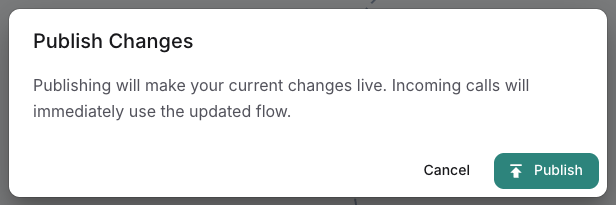
On success, record the reported published version. Publication promotes the selected draft, archives the previously published version, applies relevant application settings, reconciles endpoints from the entry points, and requests synchronization to the runtime.
If publication reports a runtime synchronization failure, do not assume nothing changed. The database publication can already have completed while telephony still has the previous configuration. Record the application, version and error, and ask the operator to reconcile the runtime state before confirming the change as live. A database version label cannot resolve this uncertainty.
If Publish is unavailable, check the displayed explanation: editing access, permission, readiness, missing saved flow, and an already-live unchanged flow are different conditions. Do not create arbitrary edits just to enable the control.
Refuse calls while an app is switched off
Availability: from 0.9.19. Changing Accept incoming calls requires the administrator permission described in Change the flow's Settings.
Switch Accept incoming calls off and publish when an app must stop taking calls without removing its entry points or numbers. After publication, the app refuses every inbound call:
- A call to the app's number or endpoint is rejected with SIP
486 Busy Herebefore it is answered, so no announcement is played. - A call that reaches the app through an extension is already answered when the extension is recognized, so it is ended with a BYE.
- Flow Builder test calls are refused in the same way; check the switch first when a test call to a switched-off app ends at once.
- No conversation record is created for a refused call. The voice service logs the termination reason
app_inactive. The Reason text isApp inactiveon the486response andapp_inactiveon the BYE.
To accept calls again, switch it back on and publish. If publication reports a runtime synchronization failure, the previous state can still apply; handle it as described above. Calls that are already connected continue.
After upgrading to 0.9.19, an app that was already switched off keeps answering calls until its flow is published or synchronized again. Ask the operator to publish or synchronize it, or to rebuild the runtime configuration, when it must stop at once. Until both the call service and the API run 0.9.19, a switched-off app keeps answering.
5. Verify the intended endpoint and review the conversation
After successful publication, use the agreed endpoint to start a new controlled test. Confirm the destination belongs to this application and exercises the intended entry point. A successful browser test does not replace this check for a phone endpoint.
Follow Review a conversation: open Conversations, select the application, and choose the record matching your test time or conversation ID. Use the test result link when available. Check the actual interaction against the expected response and path; inspect the relevant error or event details if they differ. Record the conversation ID, time, endpoint and published version for follow-up.
Conversation access depends on your role. Ask an authorized team member or operator to review the result if you cannot open it. A missing audio player does not by itself mean the call failed: retained outputs depend on recording selection and processing. For that symptom, continue with Recording diagnostics. For routing or termination failures, use SIP diagnostics; for other runtime evidence, start with Logs and diagnostics.
The task is complete when the intended endpoint produces the expected new behavior and its conversation evidence has been checked—not merely when Save or Publish returns successfully.
Restore a previous definition when necessary
Preserve any draft work you want to keep before restoring. Restore always replaces an existing draft’s definition and does not keep a second copy. Historical layout and chat history replace the draft fields too; absent/null values become an empty layout and empty history.
Open Version History using the History icon (marker 3). Review the version actions below before selecting Restore or direct Publish.
If the earlier publication failed during runtime synchronization, first resolve which configuration the runtime is serving with the operator. Do not treat repeated restores or publishes as a substitute for that diagnosis.

The images show where Save, Publish and History are. They predate the editing banner, the numbered Save confirmation and the changed-revision warning described above.
Inspect and restore saved flow versions
Open History → Version History for a saved flow. The drawer lists stored versions newest first, with vN, status and a created/published timestamp. SAVED identifies a snapshot kept by an explicit Save. Shared draft is the mutable working row; it is not an additional saved snapshot. Publishing a working draft records its next numbered publication. current marks the version loaded in the editor; it does not mean that version is live. PUBLISHED is the persisted version status, not independent verification of runtime synchronization.
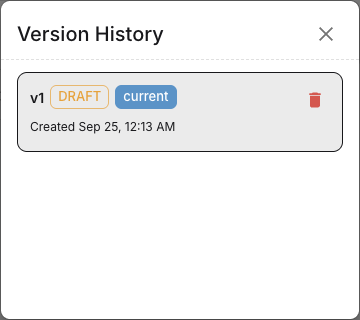
This older synthetic example shows a numbered draft. From 0.9.19 the editor labels the working row Shared draft. Its current badge is not a publication badge. Available actions vary by version status and permission. Opening the drawer did not restore, delete or publish a version.
The rows are not read-only preview selectors: there is no row action here that simply opens a historical definition for comparison. Choose the specific action only after understanding its effect. Closing the drawer only dismisses it.
| Action | When shown and what it does |
|---|---|
| Restore this version into the current draft | Shown for a version other than the loaded current version. Immediately requests a server-side restore; this action has no separate confirmation dialog. It always replaces an existing draft's definition. Historical layout and authoring chat history replace those fields too; null/absent values become an empty layout and empty history. If there is no draft, it creates a new working DRAFT. It does not publish. |
| Directly publish this version | Shown for a non-current row that is not already PUBLISHED. Opens Publish vN?, with explicit Publish confirmation. It publishes that stored version, not unsaved canvas edits. |
| Delete this draft | Shown only on DRAFT rows. Opens Delete draft vN?, with explicit Delete confirmation. The selected working draft is permanently removed; SAVED snapshots remain. This does not delete a published version or the entire application. |
Preserve draft work before Restore. The operation does not create a second backup of the overwritten draft. Check definition, layout and authoring history separately: restoring a source whose layout/history is null or absent clears those draft fields. The UI refetches and normalizes the restored draft before loading it and closing the drawer. If the server restore succeeded but refetch/normalization fails, a failure notification does not prove the server remained unchanged. Reopen/reload the saved flow and verify the actual draft before retrying or publishing.
Restore, Delete and Publish all require the current app editing session. The restore endpoint also requires team edit membership and an active subscription subject to the platform's subscription exceptions. Delete requires team edit membership; it does not use the same subscription check in this route. Publish uses the dedicated publication permission: Team Admin/platform administrator, or Member when the team explicitly allows Member publication. The drawer's disabled state is not the complete server permission contract; use access and teams for ownership and denied-request diagnosis.
Publishing a historical version deliberately
Use Restore when you need to inspect/edit/test a historical definition as a draft first. Use direct Publish only when the selected stored definition is already the intended approved change. Direct publication archives the existing PUBLISHED and DRAFT rows before marking the chosen version PUBLISHED; archiving the previous draft is different from leaving it as the active working draft.
Publication runs readiness/entitlement checks, updates the flow/application fields and reconciles endpoints before attempting runtime synchronization. The confirmation's wording about becoming live is not a substitute for checking the synchronization result. A database publication can succeed while telephony Redis synchronization fails. Follow Publish deliberately and verify the actual endpoint/runtime before concluding rollback or deployment succeeded. No procedure here guarantees that existing calls adopt a changed definition mid-session.
After deleting or restoring a draft
After Restore, check the draft status, node content, entry points and settings before another edit. Version history is about flow versions, not product release versions or an automatic backup of separately managed team secrets and tools. Revalidate those dependencies before publishing an older definition.
After Delete, the builder refreshes the saved state and selects the published version when one exists and can be applied. If pending edits refer to an item missing from that version, the editor retains your local view with Save failed; use Export and reload latest to preserve a recovery copy and load the saved state. Pending local edits are retained and can create a new draft on their next save; deleting a working draft does not discard locally retained recovery data. When no draft or published version exists, the builder falls back to the main flow record. This does not recover the deleted draft. Check the selected version, content and save status before continuing.
From 0.9.18, the editor preserves saved node positions on version load; later structural edits can still align the graph. Check node IDs/content and saved layout as well as the view; a layout difference after restore is not by itself proof that the wrong definition was restored.
Related
- Build and edit a flow — to make the draft change in Flow Designer
- Connect application entry points — to check which route reaches the published flow
- Review a conversation and its result — to confirm the test call produced the expected result
- Get access to the right team and actions — to resolve a missing save or publish action