Save, test and publish a flow
Use this procedure to make a bounded change to an existing application, publish it deliberately, and check the resulting conversation. If you do not have an app yet, create one from a template. Start with an application and test destination supplied by your team; creating an installation, obtaining a telephone number, and provisioning providers are separate administrative tasks.
Availability: Team Members can save drafts; publishing also requires the team's Members can publish Apps permission. Team Admins and platform Superusers can publish. Read-only access does not grant editing or publication rights. Browser voice testing additionally requires the deployment's WebRTC feature (FEATURE_WEBRTC) and a flow that supports a full-call test.
Prepare the change
Select the right team and check your access, then confirm that you have permission to edit the application. Ask your team administrator if you can inspect the application but cannot save or publish it.
When subscription enforcement is enabled, a paused subscription can block member writes. Publication also checks applicable audio-processing restrictions. Resolve the reported permission or plan condition with the administrator rather than changing flow settings to bypass it.
If browser voice testing is missing, other test modes can still be available. Ask the platform administrator about missing voice-test capability; publishing does not enable WebRTC.
Before editing, agree on:
- The application, team and intended flow, including the currently published version if one exists.
- One observable change, such as a revised response in an existing node.
- An approved test application or endpoint, permitted test data, and the expected conversation result.
- Who may publish and which live endpoints could be affected.
Use a designated test context before experimenting. Do not assume every Flow Designer test mode creates an isolated copy of the application. A browser voice test is also not a test of the telephone network, inbound trunk selection, or carrier interoperability.
1. Open the correct application and flow
Open Apps, select the intended application, and open Flow Designer. Confirm the application and team before changing anything. Note the live and draft version indicators: a draft is work in progress; a published version records a publication. A version label alone is not proof that a call used that version.
Check the channel and provider configuration when your change affects how conversations enter or how AI processes them. Use Configure application entry points to inspect the route relevant to your task. A phone entry point needs an assigned base number before publication; do not substitute another team's number merely to clear a validation message. For inbound or outbound routing questions, ask the administrator to check SIP routing configuration.
2. Make and save the draft change
Follow Build and validate a flow to edit the relevant node or setting; use the node reference to check its execution boundaries. Use Save (marker 1) and check that the operation completes without an error. The editor also attempts automatic draft saves, but do not treat closing the tab or waiting a few seconds as evidence that a failed save succeeded.

Saving the draft is distinct from publishing it. Keep the change unpublished while reviewing its behavior and dependencies. If the change affects retained audio or transcripts, follow Choose recording outputs; storage administration remains a separate responsibility.
3. Resolve readiness issues and exercise the test context
Inspect the Publish control's readiness information. Resolve blocking issues before continuing. Publication checks more than the shape of a node: examples include missing referenced team variables or secret values, invalid flow connections, and a phone entry point without a base number. Ask the owner to supply missing shared configuration; do not put secret values into the documentation or a support screenshot.
Review warnings as well as errors. A warning does not necessarily block publication, but it can explain behavior you need to check. Successful validation is not proof that providers, networks or external tools will succeed at runtime.
In the agreed test context, select the applicable test action. For browser voice testing, use the full-call voice option when available, follow the test session's progress, and exercise the behavior you changed. End the call and open its result when a conversation is available. A selected-step test covers that step, not the entire entry-to-exit journey.
Compare the result with your expected outcome. If setup fails, resolve the reported error before publishing. If browser testing is unavailable, arrange an approved verification path with the administrator; do not publish to a live telephone endpoint solely to work around a missing test button.
4. Publish the flow
Select Publish (marker 2), review the Publish Changes confirmation, then confirm only when the intended application and change are ready. The editor saves its current contents before requesting publication. Avoid making additional edits during this operation.
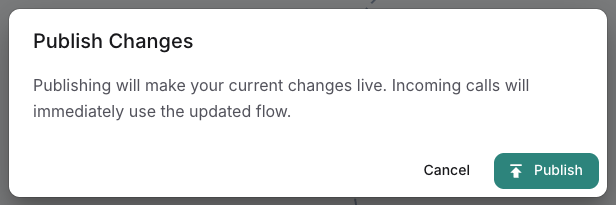
On success, record the reported published version. Publication promotes the selected draft, archives the previously published version, applies relevant application settings, reconciles endpoints from the entry points, and requests synchronization to the runtime.
If publication reports a runtime synchronization failure, do not assume nothing changed. The database publication can already have completed while telephony still has the previous configuration. Record the application, version and error, and ask the operator to reconcile the runtime state before confirming the change as live. A database version label cannot resolve this uncertainty.
If Publish is unavailable, check the displayed explanation: permission, readiness, missing saved flow, and an already-live unchanged flow are different conditions. Do not create arbitrary edits just to enable the control.
5. Verify the intended endpoint and review the conversation
After successful publication, use the agreed endpoint to start a new controlled test. Confirm the destination belongs to this application and exercises the intended entry point. A successful browser test does not replace this check for a phone endpoint.
Follow Review a conversation: open Conversations, select the application, and choose the record matching your test time or conversation ID. Use the test result link when available. Check the actual interaction against the expected response and path; inspect the relevant error or event details if they differ. Record the conversation ID, time, endpoint and published version for follow-up.
Conversation access depends on your role. Ask an authorized team member or operator to review the result if you cannot open it. A missing audio player does not by itself mean the call failed: retained outputs depend on recording selection and processing. For that symptom, continue with Recording diagnostics. For routing or termination failures, use SIP diagnostics; for other runtime evidence, start with Logs and diagnostics.
The task is complete when the intended endpoint produces the expected new behavior and its conversation evidence has been checked—not merely when Save or Publish returns successfully.
Restore a previous definition when necessary
Preserve any draft work you want to keep before restoring. Restore always replaces an existing draft’s definition and does not keep a second copy. Historical layout and chat history replace the draft fields only when present; absent/null values can leave those draft fields unchanged.
Open Version History using the History icon (marker 3). Review the version actions below before selecting Restore or direct Publish.
If the earlier publication failed during runtime synchronization, first resolve which configuration the runtime is serving with the operator. Do not treat repeated restores or publishes as a substitute for that diagnosis.

Inspect and restore saved flow versions
Open History → Version History for a saved flow. The drawer lists versions newest first, with vN, status and a created/published timestamp. current marks the version loaded in the editor; it does not mean that version is live. PUBLISHED is the persisted version status, not independent verification of runtime synchronization.
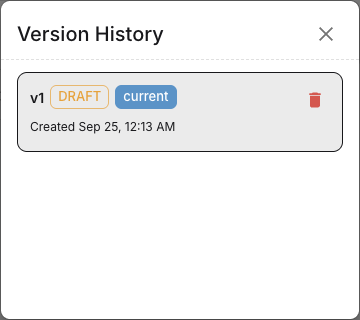
This synthetic example has one draft loaded in the editor. Its current badge is not a publication badge. Available actions vary by version status and permission. Opening the drawer did not restore, delete or publish a version.
The rows are not read-only preview selectors: there is no row action here that simply opens a historical definition for comparison. Choose the specific action only after understanding its effect. Closing the drawer only dismisses it.
| Action | When shown and what it does |
|---|---|
| Restore this version into the current draft | Shown for a version other than the loaded current version. Immediately requests a server-side restore; this action has no separate confirmation dialog. It always replaces an existing draft's definition. Historical layout and authoring chat history replace those fields only when present; null/absent values are omitted from the update, so the existing draft can retain its layout/history. If there is no draft, it creates a new DRAFT with the next version number. It does not publish. |
| Directly publish this version | Shown for a non-current row that is not already PUBLISHED. Opens Publish vN?, with explicit Publish confirmation. It publishes that stored version, not unsaved canvas edits. |
| Delete this draft | Shown only on DRAFT rows. Opens Delete draft vN?, with explicit Delete confirmation. The selected saved draft is permanently removed. This does not delete a published version or the entire application. |
Preserve draft work before Restore. The operation does not create a second backup of the overwritten draft. Check definition, layout and authoring history separately: restoring a source whose layout/history is null or absent can leave those existing draft fields in place, rather than clearing them. The UI refetches and normalizes the restored draft before loading it and closing the drawer. If the server restore succeeded but refetch/normalization fails, a failure notification does not prove the server remained unchanged. Reopen/reload the saved flow and verify the actual draft before retrying or publishing.
The restore endpoint requires team edit membership and an active subscription subject to the platform's subscription exceptions. Delete requires team edit membership; it does not use the same subscription check in this route. Publish uses the dedicated publication permission: Team Admin/platform administrator, or Member when the team explicitly allows Member publication. The drawer's disabled state is not the complete server permission contract; use access and teams for ownership and denied-request diagnosis.
Publishing a historical version deliberately
Use Restore when you need to inspect/edit/test a historical definition as a draft first. Use direct Publish only when the selected stored definition is already the intended approved change. Direct publication archives the existing PUBLISHED and DRAFT rows before marking the chosen version PUBLISHED; archiving the previous draft is different from leaving it as the active working draft.
Publication runs readiness/entitlement checks, updates the flow/application fields and reconciles endpoints before attempting runtime synchronization. The confirmation's wording about becoming live is not a substitute for checking the synchronization result. A database publication can succeed while telephony Redis synchronization fails. Follow Publish deliberately and verify the actual endpoint/runtime before concluding rollback or deployment succeeded. No procedure here guarantees that existing calls adopt a changed definition mid-session.
After deleting or restoring a draft
After Restore, check the draft number/status, node content, entry points and settings before another edit. Version history is about flow versions, not product release versions or an automatic backup of separately managed team secrets and tools. Revalidate those dependencies before publishing an older definition.
After Delete, the dialog says the builder will load the published version if one exists. The editor refreshes its data but does not reload the canvas, so the former version can stay selected. Do not rely on an automatic visual switch. Reopen/reload the flow, check the selected version and saved status, and stop editing if the canvas still represents the deleted draft. When no draft or published version exists, the builder can fall back to the main flow record; this is not recovery of the deleted draft.
From 0.9.18, the editor preserves saved node positions on version load; later structural edits can still align the graph. Check node IDs/content and saved layout as well as the view; a layout difference after restore is not by itself proof that the wrong definition was restored.
Related
- Build and edit a flow — to make the draft change in Flow Designer
- Connect application entry points — to check which route reaches the published flow
- Review a conversation and its result — to confirm the test call produced the expected result
- Get access to the right team and actions — to resolve a missing save or publish action