Get access to the right team and actions
Use this guide to sign in, recover account access, or resolve a missing app, team, setting or publishing action. Start with your account and selected team, then check the action's permission and availability. Changing a role is not the answer to every missing control.
Availability: the operator chooses which sign-in methods and product features are enabled. Your platform role and your membership role in the selected team determine your authority. Some controls also depend on team settings, plan capabilities or subscription state. Access to a documentation site or another deployment does not give you access to this team.
1. Confirm where and how to sign in
Choose the right sign-in and recovery flow
These instructions concern your Delphi product account in TelWeb. A central documentation account or Portal operator login is a separate identity and permission system. Use the address of the deployment where your team works.
Availability: the operator enables credential login, Microsoft sign-in, or both. Credential login is enabled unless AUTH_WITH_CREDENTIALS is exactly false; Microsoft login requires AUTH_WITH_MICROSOFT=true and valid provider configuration. A missing button is an operator configuration question. Enabling a provider does not create team membership or grant a role.
| What you need | Start here | Expected result |
|---|---|---|
| Sign in with a local password | Enter your email and password on the deployment's login page | An active, unlocked account reaches Delphi; an expired password leads to the change-password task |
| Sign in through your organization | Sign in with Microsoft, when available | The verified Entra identity must already be linked to an active, unlocked Delphi account |
| Change a known local password, including an expiry reminder | Open /change-password on the same TelWeb deployment | Sign in first if necessary; provide the current password and a new password |
| Forgotten local password or credential lockout | Forgot password? on the login page | Request an email containing a single-use reset link; this is not the ordinary change-password page |
| New password-based invitation | Use the welcome/setup message issued for that account | Complete initial password setup; do not replace the welcome flow with Forgot password |
If the login succeeds but the team or action is missing, continue with this guide's team and role checks. Repeatedly resetting a working password does not add access.
Complete a product welcome setup link
Use the welcome/password-setup link sent for your account on the intended TelWeb deployment. Opening /welcome-setup without its token, or with a rejected token, redirects to login; it does not begin a fresh invitation. Keep the full link private.
When password setup is offered, enter a new password satisfying the displayed requirements and choose Set Password for first setup, or Change Password when the form is handling an existing password. A successful save shows confirmation and then returns to login after approximately two seconds; it does not itself sign you in. This form has no profile-name/email confirmation fields.
The available methods follow deployment authentication settings. A Microsoft option does not create the required local identity link or grant a team role; use Microsoft prerequisites. If the link has expired, a setup error persists or no permitted method is available, ask the provisioning administrator to reconcile and resend the intended invitation through user provisioning. Do not create another registration or substitute a password reset for a still-pending invitation.
Change an expiring password
The local password-age policy applies to credential sessions. Microsoft sessions do not acquire local password-expiry restrictions merely because the same account also has a password. By default, a local password expires after 90 days and warnings begin 10 days beforehand; a missing password-change timestamp is treated as expired.
- Open the reminder's
/change-passwordlink on the intended deployment. This is an authenticated page, not a token that bypasses login. Seeing the login page while signed out is expected. - Sign in with the current password. If it is expired, the application directs you to change it; normal protected application requests are blocked until then.
- Enter the current password, then a new password satisfying the displayed rules: at least 8 characters for ordinary accounts and 16 for Super Admins, including uppercase, lowercase, a number and a special character. The server rejects reuse of the current password and the last three stored historical passwords.
- Submit the change. The UI returns to login and asks you to sign in with the new password. The server advances the account's session version, so prior sessions cannot remain valid on their next security check.
- Sign in again and verify that you can open the intended team and action. If you no longer know the current password, use the reset flow below instead of repeatedly submitting guesses.
Warnings have two delivery paths. A successful credential login in the warning window can create a deduplicated in-app notification when a team context is available. Tasker's expiry check separately queues an email reminder for eligible password-bearing accounts. An absent email is not proof that the password remains valid, and a queued reminder is not proof of delivery.
If reminders are missing or point to the wrong host, ask your deployment operator to check the password-age settings (PASSWORD_MAX_AGE_DAYS and PASSWORD_WARNING_DAYS), the PASSWORD_EXPIRY_CHECK job and the public NEXTAUTH_URL. Use background-job diagnosis to check queue execution and notification administration for delivery ownership; do not paste reset links or credentials into logs or support messages.
Reset a forgotten password or unlock a credential account
- Select Forgot password? and enter the account's email. The confirmation deliberately does not disclose whether that account exists or qualifies for local-password recovery.
- Use the newest reset email. Reset links default to 15 minutes of validity; operator configuration may change this within 5–60 minutes. Issuing another token replaces the previous one, and successful use consumes the token.
- Set a new password meeting the displayed requirements. Reset validation requires uppercase, lowercase, a number and a special character, with at least 8 characters for ordinary accounts and 16 for Super Admin reset operations. Recently used passwords are rejected.
- Sign in again. A successful reset clears the credential hard lock and failed-attempt records, resets password age and invalidates old sessions. It does not restore an administratively suspended account or add missing team membership.
An expired, already-used or superseded link needs a fresh request. If no email arrives, check the recipient address and ask an authorized administrator to inspect delivery. Requests are throttled; repeated requests can be intentionally ignored rather than sending another message. Pending invitations and passwordless Entra accounts do not receive a local credential through Forgot password. Use the appropriate invitation or Microsoft recovery route.
A Team Admin can send a reset email for an ordinary user with a shared active team; a current Super Admin can manage privileged targets. The server rechecks that authority. A visible user row is not sufficient permission, and sending the email does not itself change the password or unlock the account.
Automatic and manual locks recover differently. By default, five qualifying bad-password attempts in a 30-minute window automatically lock an existing credential account. The automatic lock lasts 30 minutes. From 0.9.18, Delphi checks its deadline on the next sign-in and clears an expired failed-attempt lock, recording an ACCOUNT_UNLOCKED audit event. This is not a background unlock timer. An administrator's manual lock remains in force even if a displayed deadline has passed. A successful authorized password reset remains a recovery route; an account suspension or missing team membership needs its own administrator action.
The operator can configure the credential threshold and duration with LOGIN_MAX_ATTEMPTS_CREDENTIALS and LOGIN_LOCKOUT_MINUTES_CREDENTIALS. Microsoft sign-in has separate defaults of 10 attempts and 60 minutes, configured through LOGIN_MAX_ATTEMPTS_AZURE_AD and LOGIN_LOCKOUT_MINUTES_AZURE_AD. These positive-integer settings are read when the auth process starts. An active local lock also affects Microsoft sign-in; Microsoft authentication does not override a manual Delphi lock. For a passwordless Microsoft account, contact the platform administrator rather than assuming local password recovery is available.
When investigating, an authorized administrator should correlate the affected attempt and account in access/audit records. The source emits failed-login events, a critical ACCOUNT_LOCKED event at threshold, and unlock events on reset or automatic expiration (lockout_expired). An error shown in the browser alone is not verification that the audit event reached the configured log destination. Do not deliberately lock a real account merely to test this documentation.
If no designated Super Admin can administer the deployment, an authorized operator should use exceptional Super Admin recovery. It is separate from personal password recovery and Microsoft identity recovery.
Check Microsoft Entra prerequisites
TelWeb's configured sign-in providers are local credentials and Microsoft Entra ID. There is no direct SAML or Okta sign-in provider in this implementation. The Microsoft issuer setting is not a generic identity-provider URL. Federation upstream of Entra requires separate deployment validation; Delphi's Entra identity and account-link requirements still apply.
A successful Microsoft authentication identifies a person; Delphi still decides whether that person may use this deployment. An email match, Entra group or app role does not create a Delphi account or choose its local role.
Before asking a user to sign in, the operator and Super Admin should confirm:
| Check | Owner and consequence |
|---|---|
| Single-tenant Web app and callback | Operator configures https://<delphi-host>/api/auth/callback/azure-ad for the deployment |
| Provider enabled and complete | Operator supplies AUTH_WITH_MICROSOFT=true, AUTH_MICROSOFT_ENTRA_ID_ID, AUTH_MICROSOFT_ENTRA_ID_SECRET and tenant-specific AUTH_MICROSOFT_ENTRA_ID_ISSUER |
| Trusted issuer | Use https://login.microsoftonline.com/<tenant-id>/v2.0; the consumer validates the tenant-specific issuer and signed tenant identity |
| Existing local identity link | Super Admin links the intended Directory/tenant ID and Object ID to the local Delphi account before first login; matching display/email text is insufficient |
| Local account and team access | Check active/unlocked state and the intended team membership and role; Microsoft cannot override a Delphi suspension |
Have the user choose Sign in with Microsoft, then confirm the intended local account and team. If Microsoft succeeds but Delphi denies access, first check the immutable identity link, active/locked state and session limit. Do not create another account solely to work around an unlinked identity. Microsoft password/MFA recovery belongs to the organization managing Entra; the Delphi password-reset flow does not reset those credentials.
Suspend or re-enable product access
Changing team membership and disabling a whole account have different scope. Removing a membership affects that team; the account's Active state is global to the Delphi deployment.
- A current Super Admin opens Admin Settings → Users and selects the intended account. Confirm identity and scope before editing; the team Users table is not an interchangeable global account editor.
- For an editable Standard User, change Active and save the account form. You cannot change your own status through this operation. A privileged platform account must first pass the separate, approved role-change procedure before the generic editor accepts changes; do not casually demote a privileged account as a shortcut.
- On deactivation, the server marks the account suspended, increments its session version and removes outstanding reset tokens. Subsequent session security checks reject both credential and Microsoft sessions. This does not prove that an already-running request is interrupted immediately.
- Re-enable only when access should resume. Enabling clears the administrative suspension, but does not clear a hard lock, recreate revoked sessions or complete a pending password invitation. An unconfigured pending credential account must finish password setup rather than being manually activated.
- Have the user sign in afresh and verify the intended team and action. Check account state, lock state and membership separately if access still fails.
The operation affects the product account; it neither disables the person's Microsoft identity nor changes their central documentation account. Use the owner of each identity system for those separate changes.
Understand an ended or refused session
For credential lockouts, use password reset and unlock; for password-age warnings, use change an expiring password. These are separate from the concurrent-session limit.
The code fallback for the product session timeout is 30 minutes; the standard Web deployment template supplies five minutes. SESSION_TIMEOUT is in milliseconds, with a one-minute minimum. Check the effective deployment value. Session handling refreshes activity; do not interpret this as a promise to sign everyone out exactly one timeout interval after their original login.
Production defaults to two concurrent sessions per user; non-production defaults to no cap. MAX_CONCURRENT_SESSIONS can override this, with nonpositive values disabling the cap. A capped login requires admission to the Redis-backed session store; an unavailable store can deny login rather than silently bypassing the limit.
If a new login is refused at the limit, sign out of an existing session. Closing a tab is not the same as signing out: abandoned slots remain until their tracked heartbeat deadline expires. If sign-in still fails, ask the operator to distinguish a session-cap failure from a session-store outage. Do not promise that deleting browser cookies releases the server-side slot immediately.
Password changes/resets, administrative suspension and other session-version changes require a fresh login. Session checks also reject removed credential/provider availability and invalidated Entra links. Re-enabling access does not revive an old session token.
2. Select the team before diagnosing permissions
- Use the team selector in the header to choose the team that owns the app or resource.
- Wait for the change to finish. A successful switch updates your saved selected/default team and returns you to the Dashboard.
- Open the app or setting again and verify that it belongs to that team.
Ordinary users choose from their memberships. Platform-wide readers can also choose an All teams view. Select a concrete team before working with team-bound settings; a platform-wide overview does not supply a team for those forms.
A successful switch does not add membership or change your role. You may be an Admin in one team and a Viewer in another. If a switch fails, the interface restores the previous selection and shows an error. If the required team is absent, ask its Team Admin or a Super Admin to check membership and whether the team is still active. A copied resource URL does not grant access.
Verify: the header shows the intended team and the expected resource is visible. If the team is correct but the resource is missing, have its owner confirm the app/resource's team assignment; do not broaden platform access just to find it.
For creating an account, resending its welcome invitation or adding/removing membership, follow Provision users and manage team membership.
3. Read the two role scopes separately
| Scope | What to establish |
|---|---|
| Platform role | USER works through team membership. SUPERUSER (Super Admin) has platform administrative authority. SUPERVIEWER (Super Viewer) has platform-wide read access without managed-resource write authority. |
| Team membership role | VIEWER, MEMBER or ADMIN for one particular team. The same person can hold different roles in other teams. |
| Action-specific conditions | The requested operation may additionally require a team policy, enabled feature, permitted plan or available service. |
Team Admin is not Super Admin. In Settings → Users, the role belongs to the selected team's membership. Platform role management uses a separate verified role-change procedure. A Super Admin may appear with a team membership role in that list; that column alone does not describe their platform authority.
The standard UI treats Members and Team Admins as flow/app authors; Viewers do not receive those editing controls. Super Viewer remains read-only for managed resources even when browsing a team. Self-service actions such as account preferences are a separate exception: “read-only” does not mean the person cannot maintain their own account.
This is an access diagnosis model, not a promise that every resource has the same create/edit/delete rules. The server enforces the requested operation separately. A visible screen or editable-looking field does not guarantee that Save is permitted; an API key's scopes are also a separate authority from your signed-in UI role.
Ask an administrator to check membership
For the affected team, an authorized Team Admin or Super Admin can open Settings → Users, locate the person and inspect their membership role. Use that team's user editor for team membership changes. The editor disables changing your own membership role; ask another authorized administrator when your own access needs changing. Removing yourself through the Team Users removal action is also blocked.
Before changing another person's access, confirm the intended account, team and task. Grant the role needed for that task rather than promoting someone to platform administration as a workaround. If provisioning a new account or changing a platform role is necessary, follow the user provisioning procedure, which has different scope from the team membership view.
Verify: after an approved change, the affected user refreshes their session/view and checks the intended action in the intended team. Do not claim success solely because an administrator's own view can perform it. If refreshed access remains wrong, ask the administrator to compare the saved membership with the affected session.
4. Resolve “I can edit, but I cannot publish”
Publishing has its own team policy. The publish permission check allows a Super Admin or the app's Team Admin. A Member can publish only when that team enables Enable Members to publish Apps (allowMembersToPublishApps). A Viewer does not gain publish permission from that switch.
A Team Admin who intends to change this policy should:
- Select the app's team.
- Open Settings → Team and locate Enable Members to publish Apps.
- Choose Off - only Team Admins may publish Apps or On - Members may publish Apps, according to the team's review policy, and save the form.
- Have the intended Member reopen the app and check the publish action. Use an approved draft and your normal release/test process before actually publishing.
The setting is team-wide, not a one-time approval for one draft. Turning it off removes that policy allowance for Members; it does not revert changes already published. If only one draft needs approval, an authorized Team Admin can review and publish it without enabling Member publication for the whole team.
Permission is only one publish prerequisite. The publish handler also checks subscription state and validates the selected flow version. A validation error or subscription block is not solved by repeatedly changing the user's role. Saving a draft and publishing it are separate operations; consult the application publication and verification for that lifecycle.
5. Distinguish a missing feature from missing authority
Wait for team and feature information to finish loading before treating a tab as unavailable. Settings navigation uses that information to decide which sections to display.
| Symptom | Check | Who can resolve it |
|---|---|---|
| Team is missing from the selector | Membership, active team, correct deployment/account | Team Admin or Super Admin responsible for that team/account |
| App or setting is visible but read-only | Selected team role, Super Viewer status, action-specific permission | Team Admin for team authority; Super Admin for platform-role questions |
| API Keys is absent | Team selected, administrative/read context, API feature availability and the team's allowed API scopes | Team Admin checks context; platform administrator controls team API enablement and operator controls deployment flags |
| Variables is absent | Selected team and authority, plus plan capability for custom LLM keys; platform-wide readers have a separate visibility allowance | Team Admin and administrator responsible for plan/entitlement configuration |
| Subscription is absent | Subscription availability: selected team, administrative authority, subscription-management and registration UI features | Platform administrator/operator responsible for that deployment's feature configuration |
| Publish is denied | Team membership, Member publishing policy, then subscription/flow validation | Team Admin for approval/policy; appropriate administrator for subscription; flow author for validation errors |
| Action suddenly requires sign-in or password change | Session validity or expired password | User completes the supported sign-in/password flow; account administrator investigates persistent blocks |
A feature flag, commercial entitlement and permission to read its documentation are separate conditions. Having the documentation does not enable the product feature, and hiding a UI tab is not the only enforcement layer. For a browser integration, follow Connect a browser application for team API keys, scopes and runtime capabilities rather than reusing your UI session as an API credential.
Change your interface preferences
Open your avatar in the header to reveal User Settings. These preferences affect how you use TelWeb; they do not change your team role, application voice, speech-recognition language or customer-facing flow content.
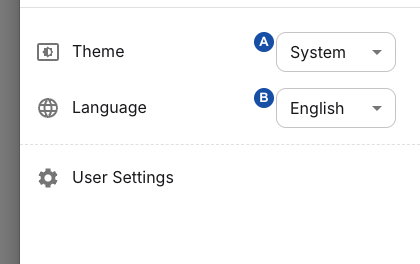
A changes this browser’s appearance; B saves the interface language to your account. These are control references, not numbered steps. Open the image for full size.
| Control | What it does and where it is saved |
|---|---|
| Theme → System | Follows the browser/device light-or-dark preference. This is the initial theme preference. |
| Theme → Light / Dark | Applies that appearance immediately. The theme choice is stored in this browser's local storage, not saved by this drawer to your account. Another browser can use a different theme. |
| Language | Selects an available TelWeb interface language and immediately attempts to save it to your account; there is no separate Save button. Wait for Switching language... to finish before selecting another. |
| User Settings link inside the drawer | Opens team settings at /settings/team; it is not a profile-name/email editor. Team settings still enforce their own access requirements. |
| Logout | Ends this sign-in and returns to the site's entry page. It does not change account membership or disable the account. |
Language choices come from the platform's active language catalogue. The picker includes English as a fallback option even if the catalogue request fails, but saving still requires an active server-side language entry and a valid account session. A selectable fallback is not proof that a database or authentication problem has been fixed.
If the language change remains pending or the labels do not change, reload and check the saved account preference. An expired/invalid session or an inactive language can reject the update. If needed, sign in again and ask the platform administrator to inspect UI languages. Do not keep selecting options while an earlier save is unresolved.
On initial page loading, TelWeb prefers an active stored user language, then a matching browser language, then English. Partial translations may show shipped English labels; an unresolved label can appear as a dotted key. Report the affected screen, language and key without including private page data. Changing language is not a promise that every dynamic message or third-party text is translated.
There is no timezone control in this drawer. The shared interface formatter uses Europe/Berlin, while individual reports can use browser-local, server-local or UTC boundaries. Use the dashboard period guidance when reconciling times rather than assuming a language change converts every timestamp.
The drawer shows account name/email and a session-provided avatar but has no name, email or photo editor. For an identity correction, ask the account administrator to use user provisioning and account management; password changes retain the separate procedure above.
Product accounts and central documentation access
Your TelWeb account controls access to a product deployment and its teams. A central documentation account is separate: a TelWeb role, team API key, enabled product feature or deployment ownership does not grant access to a restricted documentation edition.
Availability: restricted documentation requires a central documentation account that belongs to your organization's customer record. Your organization's licensed documentation modules decide which restricted pages you can read. Use the documentation entry URL that your documentation administrator gives you.
From 0.9.18, when a documentation operator adds you as a member, you receive a setup email. The link is valid for 24 hours. Verify your email address and finish the account setup; your access then starts automatically, without a second approval. Ask the operator to send the link again if it expires. Do not forward the link or paste sign-in callback URLs into support messages. Operators follow Add a documentation member.
For missing documentation, provide the intended customer, requested module/topic, supplied documentation URL and the approximate time/error, without credentials or private page content. Ask the central documentation operator to check the invitation, customer membership, the customer's licensed documentation modules and edition publication. Changing your TelWeb role or retrying a product API key will not resolve these checks. If access changes require a new sign-in, restart from the documentation entry page you were given rather than reusing a callback URL.
A documentation entitlement does not turn on the product feature, and product enablement does not publish its documentation. Public documentation remains separate from restricted editions.
Close the access request with a concrete result
Give the administrator the deployment, selected team, affected account, resource, intended action and exact error. Include whether the control is missing, disabled or rejected after submission; those are different observations. Provide a redacted screenshot when it helps identify the screen, without tokens, personal conversation content or secret fields.
After the change, verify the intended task as the affected user. Confirm that the account still has the expected restrictions elsewhere, and record who approved any lasting policy change. If the requested feature remains unavailable, keep the next owner clear—team administrator, platform administrator, deployment operator or flow author—instead of cycling through unrelated role changes.
For deployment flags and version-dependent controls, continue with Feature availability. A role change does not activate a deployment capability.
To change shared team defaults and understand which controls save independently, use Team configuration.
For a new self-service account and team, follow Register an account. Registration is separate from administrator invitations and central documentation/Portal accounts.
Related
- Provision users and memberships — to create an account, add a membership or change a team role.
- Understand feature availability — to check whether a missing control depends on a deployment flag or plan.
- Review team notifications — to find password-expiry and account alerts for the selected team.
- Configure and maintain a team — to change the team's shared defaults and publishing policy.