Create and manage applications
Create an app in the intended team, or find and manage an existing application. For creation, open its first flow and establish what is saved before configuring providers and channels. For a first application, use an available template: this path creates an inactive flow with a Draft version that you can review before publication.
In 0.9.17-patch2, creating the app requires Member or Admin authority in its team, or a Super Admin. Super Viewer is read-only for this operation. A paused subscription can block a Member when subscription management is enabled; Team Admins and Super Admins have separate bypasses for that check. Ask your administrator about the applicable policy rather than assuming every account needs a paid plan.
In this release, AI creation and legacy conversion are additionally limited by the UI to development/preview version labels, as well as FEATURE_AI_FLOW_BUILDER. A normal release-labelled deployment may therefore omit AI creation and disable legacy conversion. Use templates or a reviewed JSON import instead; do not change the deployment version label to expose a control. Templates are filtered by their scope and required features; the list may differ between teams and deployments. Missing templates or AI controls do not imply that the app has already been created.
1. Choose the team and starting point
Select the intended team in the header, then open Apps and choose Create new app. The creation screen is at /apps/new. If you cannot select the team or see the create action, resolve team access and permissions first.
Choose the team explicitly even if the screen already has a default. Creation uses the selected/default team, with the first membership as a fallback when no default is present. It does not ask for an ownership team in a separate creation dialog.
The chooser offers these paths:
| Starting point | Purpose and result to check |
|---|---|
| Start from a template → Browse templates | Select a ready-made starting definition. Creates an inactive flow and Draft version; recommended for this first walkthrough. |
| AI Flow Builder → Start with AI, when available | Describe a flow and let the assistant generate it. Review the activation differences below before accepting the generated result. |
| Paste FlowDefinition JSON → Open editor | Validate an existing authoring/runtime FlowDefinition and create an app from it. This is not a full application, credentials or deployment import. |
| Import legacy flow → Import legacy JSON, when available | Convert an old lookup payload with the AI builder. This requires AI availability and is a migration path, not a blank-app shortcut. |
There is no separate Blank app button in this chooser. For a simple starting point, use an appropriate template and adjust it in the designer.
2. Create from a template
- Choose Browse templates (marker 1).
- Read each card's name, description and channel labels. Choose a template whose intended interaction matches your task, such as a browser voice or text interaction. A channel label does not provision the corresponding service or credentials.
- Choose Use template (marker 2) once and wait for the Flow Designer to open.
- Confirm the app and flow shown are the ones you intended. Record the app URL/ID so you can return to the same app rather than creating another one.
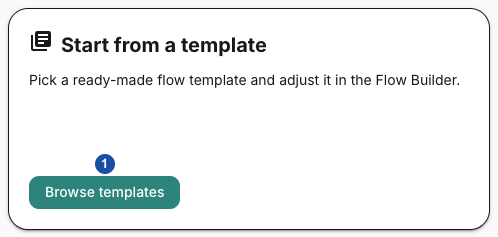
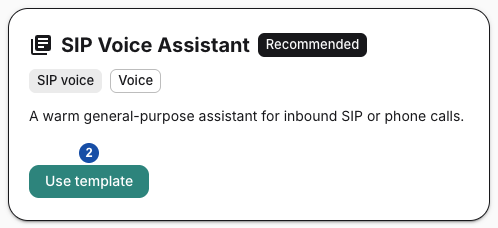
These crops show a synthetic 0.9.17-patch2 installation with AI creation disabled. The illustrated template controls also match the reviewed Next source. Your available templates and recommended starting point can differ. Capture stopped before selecting Use template; no app was created or published for these images.
The initial app name comes from the selected template. The template's definition is copied into a new flow for that app, and the initial version is Draft. Platform Azure defaults may be applied to the copied provider configuration; inspect the effective provider fields before testing. Choosing a template is not confirmation that its provider account or model is usable in your environment.
If the list says No flow templates are available for this team, ask the platform administrator to check active platform/team templates and their feature requirements. Do not treat an empty list as a prompt to grant yourself more access or import an unrelated production configuration.
What now exists
| Object/state | After the template path |
|---|---|
| App | A saved app belonging to the chosen team; its app-level active flag defaults to enabled. That flag is not proof of a published flow. |
| Browser endpoint record | The app creation step creates a customer Browser endpoint record. At that step it is not linked to a flow. |
| First flow | A copied, inactive definition with a Draft version; the template creation step does not publish it or synchronize its customer entry points. |
| External resources | Provider credentials, phone numbers, trunks, permissions and browser/media services still need their own valid configuration. |
Continue with Choose a provider and channel and Configure application entry points. Use Save, test and publish an application for the transition from a reviewed draft to the intended runtime state.
Import controls and their meanings
If you already have a reviewed FlowDefinition, Open editor provides these controls:
| Control | Meaning |
|---|---|
| App / flow name | Sets the name used for the new app and flow. It is synchronized with a top-level JSON name when available; supply a meaningful name before creating. |
| Choose JSON file | Reads the chosen file into the editor. Loading a file does not itself create or publish an app. |
| JSON | The flow definition to normalize and validate. The displayed scaffold is an example with provider references, not evidence that those resources exist in your team. |
| Validate | Parses JSON, checks a supported flow shape, normalizes it, and checks flow/tool references against the team's available tool names. Critical errors block creation; warnings are shown but do not block it. |
| Create app | Revalidates and begins saving the app and generated flow. See the activation and partial-failure boundary below. |
| Back | Returns to the preceding choice. Save any source you need before abandoning an import. |
Review provider references, tool names, endpoints, numbers, runtime actions and any sensitive values before importing another environment's definition. Validation is not an execution test, credentials migration, authorization review or proof that every referenced resource is usable.
Legacy import instead offers Start AI conversion. It sends the supplied legacy material into the conversion briefing. Use only input approved for the configured AI service and review the resulting flow; do not treat conversion as a lossless or automatically safe migration.
AI and pasted imports have a different activation boundary
The AI-generated, pasted-JSON and converted-legacy paths create the app, then request an active flow definition, and only afterwards save a Draft version and navigate to the designer. The active-flow creation step requires the team's publication permission and synchronizes customer endpoints from the entry points.
Consequently, a later Draft label is not proof that these paths never changed active flow/endpoint state. Inspect routing and entry points before accepting generated/imported definitions, and use a controlled environment for a first import. A Member permitted to create an app may still be denied at the active-flow step when Member publication is not enabled. The template path above does not use that same active-flow creation step.
A draft save is not the same as publication in the ordinary editor workflow. Review the resulting definition, endpoint associations and version state before testing or exposing an app. The application journey explains deliberate publication and verification after editing.
Verify success and recover from an incomplete creation
Successful creation should take you to the new app's Flow Designer with a specific flow/version selected. Verify the owning team, name, nodes, provider references, entry points and version state. For the template path, confirm the Draft state before proceeding to channel configuration and tests. After a controlled test, review its conversation to check what actually ran; a created card alone is not proof of a working assistant.
Creation consists of more than one server operation. The app and its initial Browser endpoint can be saved even if later flow creation, template instantiation or draft saving fails. It is not one all-or-nothing transaction across the entire UI path.
If saving stalls or fails:
- Keep the selected team and input definition/name available. Avoid repeatedly clicking Create or regenerating the same result.
- Return to Apps and check whether the app already exists. Open that exact app and inspect its flow/version/endpoint state before retrying.
- For an authorization failure, ask the Team Admin to distinguish app creation authority from publication policy. For a paused subscription, ask the administrator responsible for the team's subscription state.
- For invalid JSON, missing tools or unsupported flow shape, correct the named input error. A warning-free validation still does not prove provider access or live routing.
- If an incomplete or duplicate app remains, ask its authorized administrator to review the actual resources before repair or removal. Do not delete an app merely because the final navigation failed.
Record the app ID if available, team, chosen creation path, time and error text for support. Share a redacted definition only when needed; never include provider secrets or real customer data in a general support report.
Find and inspect an existing application
Open Apps with the intended team selected. Check the owning team on the record before editing; platform-wide readers can have broader visibility. The list can switch between cards and a table. Sort by name, updated time or creation time, in either direction. Table filters are applied through the server query; the list loads additional records as needed. Table column visibility and order are saved as user settings after a short delay, not as application configuration.
Cards summarize the name, description, tags, active/recording state and connected entry points. The table exposes name, endpoints, description, status, flow/endpoint configuration, team and created/updated times. A badge summarizes saved state; it does not establish that the runtime synchronized successfully or that a recording object exists.
| Action | Meaning and prerequisite |
|---|---|
| Open the app | Opens its Overview workspace. Confirm the app name and team before continuing. |
| Open Flow Designer | Opens its flow editor; editing/publication still require the appropriate authority. |
| Call published flow / endpoint call | Requests a call through the configured browser calling widget when call buttons are enabled and a suitable published endpoint is available. This uses the selected published route, not an automatically isolated draft. The list disables calling for read-only users. Backend/session permissions still apply. |
| Copy | Opens the copy dialog; see the published-flow copy procedure below. |
| Delete | Opens a confirmation for an administrative deletion; read the deletion scope below first. |
| Sync apps | Refreshes the selected team's runtime application lookup. This is separate from publishing a draft; use it only for an intended runtime reconciliation. |
Do not use a call button on an unknown customer app to test the documentation. Use the team's approved test destination and review the resulting conversation.
Understand the Overview screen
The banner displays the app name, description, tags and available status/recording chips. A dashboard-exclusion marker means the app is excluded from dashboard reporting; it is not a deletion or privacy guarantee. Latest calls lists recent conversations and links to their details. Activity history shows recorded application/configuration activity; it is distinct from the flow's Version History controls and is not proof that every runtime action was captured.
Use Open Flow Designer for editing. The Overview banner is not a universal inline editor or settings form. For name and application-level options, use Flow Settings; for recording outputs use recording selection. For endpoints and providers use their respective flow settings. An Active or Rec On chip is not a guarantee that every incoming call will succeed or be retained.
The optional call action requires enabled call buttons and a suitable published endpoint. If unavailable, check the product's calling feature, endpoint and authorization with the administrator rather than changing app metadata to make the button appear. A visible button alone does not prove that your session may initiate a call.
Copy a published application
- Open Copy on the intended source application. Supply the destination name and inspect the selected team. The server validates access and applicable subscription state; a team choice in the dialog does not override permission to move or copy between teams.
- The operation copies the latest published version of each eligible flow, excluding generated test flows. It does not copy unpublished draft work or full version history. If no eligible published flow exists, it fails with App has no published flows to copy.
- Submit once and wait for the resulting app. The copied app and flows start inactive, with a version-1 Draft, and a browser endpoint record. Telephone entry assignments are stripped from supported definition surfaces; this is not a duplication of the original phone routing.
- Open the new app and inspect its team, flows, provider references/inline credentials, tools, variables, entry points and recording settings before activation. Copying a flow does not provision equivalent secrets or external resources in another team. Treat copied inline values as sensitive configuration.
- Configure the intended routes, save, validate, test and publish through the normal application journey. A successful copy is not a successful deployment or working conversation.
If the request fails or times out, check whether the destination app exists before retrying. Inspect the actual saved result instead of generating duplicate copies to resolve uncertain navigation.
Refresh the team's runtime lookup
The Apps toolbar's Sync apps control uses the selected/default team. It prepares a new runtime lookup, writes it to Redis and then removes stale keys. It does not turn an unpublished draft into a published flow. Read the returned counts and any omitted-app warning; success is not proof that every app was included.
Use this action to reconcile intended saved state with runtime in coordination with the operator. It affects the team lookup, not merely the open card. Preparation can fail before writes, but writing and cleanup are separate phases; an error after work starts does not establish that Redis is unchanged. Inspect the actual lookup and a permitted new interaction before repeating synchronization or declaring recovery complete. Read-only UI disables this action; the backend still checks the acting account and team access.
Delete an application deliberately
Deleting requires Team Admin authority for the app's team or a permitted platform administrator, with the applicable subscription check. Confirm the app ID, owning team and intended retirement before accepting the delete confirmation. Preserve required configuration and data through the approved recovery process first; copying an app is not a conversation backup.
Deletion removes the application's flow definitions, conversations and endpoints, then the app record in a database transaction. Treat the operation as destructive; there is no undelete procedure in this screen.
The database cleanup does not itself establish that external recording objects were removed or that already-loaded runtime state and active calls stopped. Coordinate route retirement, runtime lookup cleanup and retention requirements with the deployment/storage operator. Do not promise immediate cancellation of existing calls from the deletion result alone.
After deletion, verify that the app is absent and intended entry routes are no longer usable. If the operation returns an error, inspect database/runtime state before retrying: audit logging follows the database deletion and can fail after the rows were removed. Report the app ID, time and safe error without including conversation content. Restoring deleted data requires the appropriate verified backup/recovery procedure, not another click on Create.