Build and edit a flow
Build a flow by choosing the conversation steps, connecting their outcomes, and checking the path that each caller or browser user can take. Start with an existing app from Create your first application. This chapter covers authoring; Save, test and publish an application owns the draft, test and publication lifecycle.
Use an app in a team you can edit. Reading a flow, saving a draft and publishing it are separate permissions; resolve missing actions through team access and permissions. The optional AI builder has its own deployment availability, described in application creation. Manual editing does not establish that every node in the palette can run on every channel. Check the node execution paths before adding a step.
1. Establish the flow's starting context
Open the app's Flow Designer at /apps/{appId}/flows. Check the app, selected flow and version before editing. A diagram from version history is not proof that it is the version serving customer traffic.
Review these three things first:
- Entry points: which phone, browser voice or browser chat interaction should reach this flow? Configure them in Application entry points.
- Provider: what processes the conversation, transcription and speech? Review Choose a provider and channel, including credentials and node overrides.
- Initial step: where should execution start? A visible node that is not connected to the start or a reachable branch will not become part of the main conversation just because it is on the canvas.
The canvas combines executable conversation nodes with settings projections. Start, entry-point, default-provider, surface and capability objects describe configuration around the graph. They are not extra steps to insert into nodes.
2. Add and configure steps
Use Add node, choose a type and select the new node to edit it. New nodes receive a generated ID and are added to the definition; they still need the appropriate connections. The palette separates standard and advanced choices. Advanced is an editing category, not a permission grant or a guarantee of channel support.
For a normal agent conversation, keep the first graph small: a supported agent, its deliberate exit route and an End node. Add branching, webhooks or other actions only when the behavior requires them. The following is a design sketch, not importable FlowDefinition JSON:
Use the node reference for the meaning of each step and the output you must check. A successful request to advance the graph is not necessarily a successful external action.
| Selected area | What to edit or check |
|---|---|
| Conversation node | Instructions or input, provider override when offered, tools, node-specific settings and outgoing transitions. Fields differ by type. |
| Transition | Event, destination, optional condition and context updates. Read data and transitions before relying on ordering. |
| Entry point | Channel and addressing configuration; follow the dedicated entry-point task. |
| Flow settings / provider | Shared configuration rather than one step's prompt. Review the provider, language and applicable app/session settings. |
| Variables panel | Available variable names and their use sites. This is an authoring aid; it does not manufacture values missing at runtime. |
| Version history | Check stored status and choose restore/publish deliberately; the drawer is not a read-only comparison viewer. Use the version-history reference. |
Changing an ID or removing a step requires checking incoming transitions and the initial node. Moving a node visually does not reorder execution: transitions control that order. In 0.9.17-patch2, enabled automatic alignment can re-layout the graph on initial load as well as after structural edits. Do not treat preserved canvas positions as guaranteed in this release.
3. Make every intended outcome explicit
For each step, identify its event and what should happen next. Use a specific condition before a general fallback for the same event. Agent steps commonly leave through a named tool-call transition; they are not single-turn prompts that necessarily emit complete after every response.
Check both the normal path and the failure path. In particular, webhook and LLM-query runners can emit complete after recording an error. A branch that assumes every complete means business success can route incorrectly. Give every intended terminal branch an End node, and review validation messages for unreachable nodes, missing targets and circular-only paths.
A continuous transcription/interpretation pipeline uses specialized processing. Do not copy ordinary complete transitions onto its stream connections and expect one execution per transcript chunk. Its boundary is described in the node reference.
4. Edit or move a definition through Source view
Use the JSON exported by the editor as the starting point for source changes. The editor displays an authoring representation, produced from the runtime definition. It accepts recognized authoring/runtime input through normalization; these representations need not have the same field layout. In particular, do not wrap the export inside a made-up flow, providers or variables object.
- Copy or download the existing applied definition before a substantial edit. Treat it as configuration that may contain sensitive inline values; it is not a credentials-free backup.
- Open Source view and change the smallest relevant section. JSON syntax feedback checks parsing while you type.
- Apply parses and normalizes the input and replaces the editor's flow state. Resolve errors before proceeding. If the source
namechanges, Apply also requests an app rename immediately; it is not purely an unsaved local preview of the name. - Review the resulting canvas, entry points, providers and transitions. Run the normal save and validation process before testing.
- Copy or download again only after applying the intended text. When a flow is loaded, these controls export the applied flow state, not un-applied text remaining in the JSON editor.
Importing a JSON file normalizes it into the editor state. It does not by itself publish the flow, provision provider accounts or recreate all resources from another environment. Review environment-specific references and credentials before saving or publishing.
Parsing, normalization, semantic flow validation and a runtime test answer different questions. Validation checks include graph structure, tool resolution, selected provider/failover/routing rules and variable usage, but do not prove external services or all channel combinations work. In 0.9.17-patch2, semantic tool resolution checks named agent tools against embedded action tools and the supplied known-tool catalogue. A tool implemented only by a described transition may still be reported as unresolved; do not assume the newer validator behavior applies to this release.
5. Verify and recover
Follow Save, test and publish to save the intended draft and exercise it through the intended channel. Cover a normal conversation, an exit, a condition fallback and any external action you added. Then review the resulting conversation to compare node activity and available logs with your expected path. A test on a different channel does not validate a phone transfer or a browser-only action.
| Symptom | Check and recovery |
|---|---|
| New node never runs | Check the initial node, reachable incoming transitions and event/condition matching. Canvas position has no routing meaning. |
| Flow stops after a step | Inspect its emitted event and the ordered transitions. No matching transition completes the main engine; it need not produce a missing-edge exception. |
| Missing runner error | Compare the selected type with the runtime path in the node reference. Change to a supported design or ask the operator about the required service path. |
| Apply succeeds but saving fails | Read the save validation error; normalization is not the final semantic check. Repair the named field/tool/target rather than bypassing validation. |
| Imported flow runs against the wrong resources | Recheck app/team, entry points, provider references and environment-specific values before publication. |
| Edited JSON absent from download | Apply the text first, then export and inspect the result. |
| External action appears to finish but nothing changes | Inspect the action result/error and host capability. Graph completion alone does not confirm an effect. |
Keep a known working version available through version history. Do not assume re-importing a flow also reverses changes already made by a webhook, external action or app rename.
Flow settings reference
Change the flow's Settings
Open Settings for the application flow. These controls update the flow editor's draft definition. Changing Active, recording preferences, reporting visibility or QA settings here does not immediately update the application record. Save the draft to preserve the edit; publishing applies its application settings and synchronizes the published configuration. Reopen the saved version to check the stored values, then follow the publication procedure before testing a new conversation. This describes the flow editor, not every application edit form elsewhere in the product.
Availability: editing and publication follow the current team's flow permissions and publication policy. Active additionally requires the editor's administrator permission; a visible flow does not establish write permission. Use Access and teams when controls are disabled or the expected team is missing.
| App Settings control | What it changes and how to use it |
|---|---|
| Active | Sets the application's requested active state in this draft. The display falls back to the application's existing active state when no draft override is stored. |
| Recording artefacts | Chooses the conversation outputs. Use Choose recording outputs for output meanings, storage and access prerequisites. |
| Record every N calls | Appears when a recording output is selected. Display fallback is 1; choose a positive integer, with the form advertising a maximum of 10000. This is sampling frequency, not retention. |
| Hide from reporting | Requests exclusion from report queries which filter out excluded applications. Default display is off. This does not delete conversations or make their records private. |
Set application QA scoring
Availability: the section is shown when the UI QA feature is enabled and the team has not disabled QA. Actual scoring also requires the worker's QA feature, an eligible subscription plan, team and application permission to score, transcript data and a usable scoring LLM configuration. An application override cannot grant a missing plan capability. Ask the team administrator about team settings and the platform operator about feature configuration when this section is absent.
| Control | Meaning |
|---|---|
| QA scoring — Inherit team/platform setting | Removes the application's explicit enable/disable, provider, model and prompt overrides. It does not force scoring on. |
| Disabled for this app | Stores application scoring disabled and clears its provider/model/prompt overrides. |
| Override for this app | Enables scoring at application level and exposes Scoring provider, Scoring model and Scoring prompt. Empty inputs inherit the corresponding downstream configuration. |
| Scoring provider / Scoring model | Select the scoring LLM identity and model, separate from the conversational provider. Worker resolution uses application, then team, then its resolved scoring credentials/configuration. |
| Scoring prompt | Instructions for the scorer. The worker uses application, team, platform default, then its built-in prompt. This is not the bot's conversation instruction. |
After publishing, inspect a newly completed eligible conversation's QA status and results. A skipped result needs eligibility/transcript checks before prompt tuning; publishing does not prove a scoring request succeeded.
Limit call duration
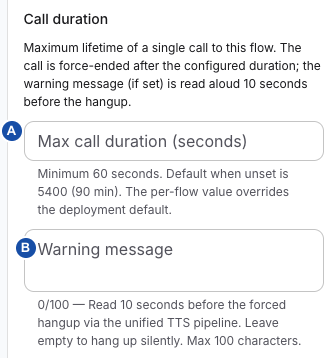
A — Max call duration (seconds) sets an explicit limit. B — Warning message sets the pre-termination announcement. This synthetic released form has empty fields. Read the inheritance rules below: empty inputs and helper text alone do not establish the effective runtime values. No call was made for this image.
Max call duration (seconds) bounds the telephony call. Warning message supplies a short spoken warning before termination. For example, an explicit 600 with “This call will end shortly.” requests a ten-minute limit and a warning window ten seconds before that limit. This is a configuration example, not a completed call test.
The UI advertises a minimum of 60 seconds and rounds numeric edits to whole seconds. The stored schema accepts integers from 10 to 7200; use the UI's advertised range when editing through the form. Warning text is limited to 100 characters. The maximum-duration timer attempts to disable voice input when the provider supports it, optionally speaks the warning, and terminates at the limit without waiting for the announcement to finish.
Do not infer the effective limit from an empty field:
| Saved definition | Effective resolution in the inspected telephony path |
|---|---|
| An explicit maximum | That value takes precedence over the environment limit. |
sessionConfig exists, but its maximum is omitted | Schema parsing supplies 5400. Other session controls, such as cache settings, can keep this object present. |
The entire sessionConfig is absent | The runtime environment's MAX_CALL_DURATION_SECONDS applies; its configured default is 7200. |
| Warning blank or absent | The runtime falls back to its environment warning. The environment default is empty, but an operator may have configured text. |
Consequently the helper's “default 5400” and “blank is silent” wording is not a complete description of runtime inheritance. Set an explicit maximum when a precise limit matters, and ask the operator about an inherited warning. Verify with an approved test call and its termination evidence; a text-only conversation is not evidence for this telephony timer.
Choose TTS caching
Expand Advanced TTS caching. Caching reuses generated speech; it does not select which conversation recordings are retained.
| TTS cache backend | Meaning |
|---|---|
| Inherit | Removes the flow backend override and uses the platform backend. |
| Off | Disables the selected cache path. |
| Shared media cache | Requests the shared media backend. Availability depends on the media-cache feature; a stored media selection can remain visible but disabled when that feature is off. Runtime platform disablement also prevents this backend from being used. |
| Local in-memory cache | Requests local caching and reveals Local retention seconds. The UI accepts positive whole seconds up to 315360000. Local cache is not durable shared storage. |
Switching away from Local removes the flow's local-retention override. Effective local retention falls back from flow seconds to enabled application retention hours converted to seconds, then platform retention. Platform maximum item/cache sizes still apply, and the session-level disableTtsCache setting can override the requested backend. Reopen the saved draft to check whether an override remains; runtime cache verification needs the selected deployment and audio path.
Set language defaults
Primary Language supplies the language used to normalize provider defaults. A missing primary language normalizes to en-US. Select an offered language option: although the control accepts typing, its inspected change handler does not commit arbitrary free-text strings.
Allow language switching switches the stored mode between strict and flexible. Flexible mode exposes Allowed Languages, excluding the primary language from its choices. Turning switching off hides the list but retains its stored entries. These are flow-level preferences, not proof that every selected speech/LLM provider implements language detection or enforces an allowlist. The flow retains the mode and allowed-language preferences, but support for automatic switching depends on the selected provider. Check the selected provider's language controls and verify recognition and generated speech in the intended languages.
Add or remove the Shared Voice Flow
Add creates an initial voice-agent node and an End node when there is no non-End main-flow node. It selects and lays out the new voice node, supplies a basic instruction, and wires its hangup tool to End. It does not by itself provision a telephone number or browser voice endpoint. Continue with Application entry points to make the flow reachable.
Remove is a destructive draft rewrite, not a visibility toggle. It replaces the main graph with End, clears telephone entries and both browser voice and browser chat entries, removes action tools and the gateway profile, and removes realtime/STT parts of the inline default provider. It enables the browser surface and its actions channel, retains existing browser actions, and keeps only the context entries detected in those actions' input-text, continuation and transform-prompt templates (excluding the trigger context); it may derive a browser TTS default from the previous realtime configuration. The button's handler has no additional confirmation.
Before removing, preserve a recoverable saved version and inspect the source/graph. After removing, review the remaining actions, context, provider and entry points before saving or publishing. Do not use Remove merely to stop accepting calls; inspect the application's Active control or the relevant entry point instead. The Shared Voice Flow presence test includes non-End main nodes, so this control can be shown even when the graph is not exclusively a voice graph.