Choose what a call recording retains
Use app recording settings to retain the outputs you need—for example, a transcript without audio. Storage destination and retention are separate administrative tasks.
Availability: Work in the team that owns the app. Publishing requires a Team Admin, a platform administrator, or a Member whose team permits Members to publish apps. Team/subscription checks can also prevent publication. If you can edit a draft but cannot publish it, ask your Team Admin to review the change. The team's recording destination must be configured before a recording can be stored.
Select the outputs
Open the app's Flow Designer and choose Settings in the editor toolbar. In App Settings, find Recording artefacts.
-
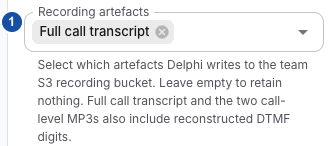
Choose the outputs (marker 1). For transcript-only storage, choose Full call transcript and remove all audio selections.
-
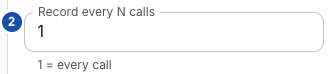
Set the frequency (marker 2). Set Record every N calls to
1when verifying every test call. This field appears when at least one artefact is selected.
-
Save the draft, review the change, and Publish the version through your team's normal approval process. Saving a draft alone does not apply these app settings to the published flow.
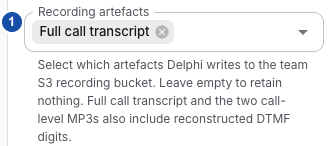
The images use synthetic data from 0.9.17-patch2. The illustrated controls are unchanged in the source reviewed for Next.
| Selection | Intended retained output |
|---|---|
| Full call transcript | Call transcript and context, including captured keypad events where applicable |
| STT transcript | Caller speech-turn transcript |
| TTS transcript | Bot speech-turn transcript |
| Full call audio with denoise processing (if applicable) | Call mix using processed caller audio, when available |
| Full call audio | Call mix using caller audio before preprocessing |
| STT audio per turn | Individual caller speech excerpts |
| TTS audio per turn | Individual bot speech excerpts |
Selections control which outputs are requested. They do not guarantee that the corresponding audio/turn data exists or that processing/upload succeeds. If your integration needs per-turn audio references, select the matching STT/TTS transcript as well as that turn's audio.
Verify after publication
Make an approved test call after the new version is published. When it finishes, inspect the conversation and allow recording processing to complete. For transcript-only storage, the absence of an audio player is expected; ask the storage operator to confirm the selected transcript object if you need to verify S3 retention.
If an expected output is absent, follow Diagnose recording storage and processing. That procedure separates unpublished settings, frequency selection, missing source data, upload failures and playback lookup.
To interpret call-transcript.json, including its call fields, source stages and
dtmfEvents, use the recording output reference.
Turn recording off
Clear all Recording artefacts, then save and publish the change. The UI also resets the recording frequency to 1 when the selection is cleared. This stops requesting new recording outputs for the app; it does not delete existing recordings, conversation records or diagnostic logs.
Apply changes before the calls you want to verify. Do not assume a settings change rewrites an already-running call's prepared configuration.
Keep the ownership boundaries clear
- A Team Admin configures the shared destination using Team recording storage.
- An AWS/storage operator verifies bucket access, lifecycle and existing-data handling. A Delphi role does not grant AWS access.
- Runtime storage-protection controls can suppress retained content independently of the selected outputs. Recordings and storage connects the related responsibilities; selecting an artefact is not a promise that protected content will be retained.