Manage system audio
Use Settings → System audio to upload, find, preview and delete audio files. The page has two sections. Shared audio holds one file that every team can preview. Your team's audio holds files that only your team can access.
Availability: the library is available from 0.9.18. Team members can preview the audio their team can see. A Team Admin uploads and deletes team audio. A platform administrator manages the shared file under Admin settings → System audio; a Super Viewer can open that page read-only. Your platform operator must configure system audio storage first, using Deploy and verify system audio. From 0.9.19, App authors can select Ready library audio for SIP call triggers. Uploading alone does not start playback.
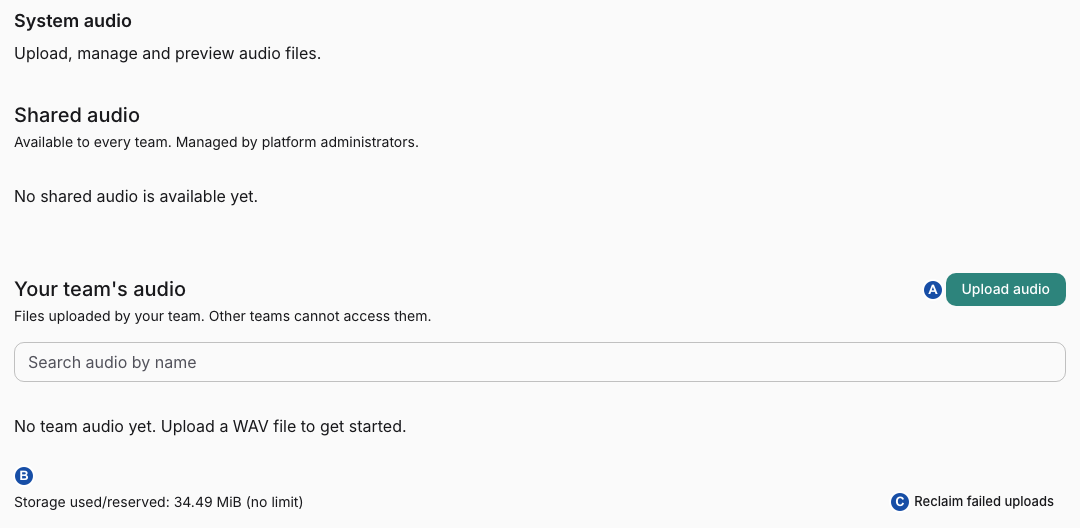
A opens the upload dialog, B shows used or reserved storage, and C reclaims failed uploads.
Upload team audio
- Select the team, open Settings → System audio, and select Upload audio in Your team's audio. The dialog Upload team audio opens. The file belongs to the selected team.
- Choose a WAV file. The filename fills Name; change it to a recognizable name of up to 120 characters.
- Check the limits shown under the file field, for example
WAV · up to 100 MiB · up to 5 minutes. The per-file limit is set by your operator, from 1 to 100 MiB. - Select Upload audio. The row moves through Waiting for upload, Uploading, Queued for preparation and Preparing to Ready. While preparing, it shows Verifying file, Checking file, Preparing preview or Finishing.
- Select Preview on the ready row and listen to the file. Opening another preview closes the previous player.
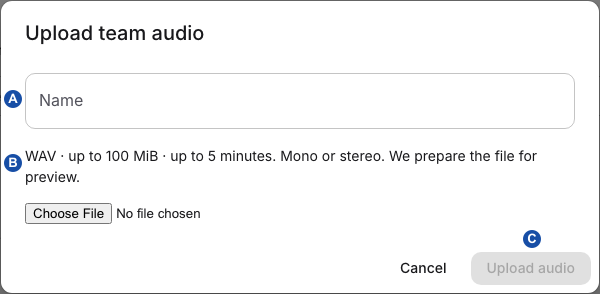
A names the audio, B shows the WAV limits, and C starts the upload once a valid file is selected.
The library accepts these WAV encodings:
| Encoding | Channels | Sample rate | Sample format |
|---|---|---|---|
| PCM | Mono or stereo | 8–96 kHz | 16-, 24- or 32-bit integer |
| IEEE float | Mono or stereo | 8–96 kHz | 32-bit float |
| G.711 A-law | Mono | 8 kHz | 8-bit |
MP3 files and raw A-law files without a WAV header are not accepted. Audio must be five minutes or shorter.
Create audio from text
When your deployment has Azure Speech configured, the upload dialog also offers Text to speech · Azure Speech. Enter the Exact announcement text (up to 2,000 characters), choose Voice and language, and select Upload audio. The announcement is synthesized once and stored like an uploaded file. WAV uploads do not need an AI provider.
Find and remove audio
Use Search audio by name to narrow the team list. Files are listed newest first; select Load more for further results.
To replace a team file, upload the new file, wait for Ready and preview it. Select the new file in each App that should use it, then save and publish those Apps. There is no separate replace action or audio version-history editor. Make sure your allowance has room for both files while the new one prepares.
Select Delete on a file you no longer need and confirm Delete audio?. From 0.9.19, deletion is refused while a saved App configuration, the flow's saved version history or an active call still uses the audio, so clearing the current selection alone may not free a file. Deleting a flow or an App releases the references held by that flow and all its saved versions at once; deleting an unpublished draft releases only that draft's references. A call holds its audio until hangup. If a call ends abnormally, that hold is released automatically within about 25 hours. Retained team files continue to count toward storage.
Deletion removes the file from the library and stops previews at once. Background cleanup deletes the stored files after a short safety delay. Storage usage drops only when that deletion succeeds. A deleted file cannot be restored.
Check storage and reclaim failed uploads
The team section shows its storage use:
Storage used/reserved: 12.50 MiB / 500 MiBwhen your subscription plan has an allowance.Storage used/reserved: 12.50 MiB (no limit)when no allowance applies. This is the case for teams without a subscription, plans without an allowance, and complimentary or unlimited agreements.
Uploads in progress and files waiting for cleanup count toward the used value. When an upload would exceed the allowance, Delphi rejects it with System audio storage allowance exceeded. Upgrade the subscription or ask a platform administrator to increase its allowance.
Failed or abandoned uploads can keep storage reserved. As Team Admin, select Reclaim failed uploads. It removes failed or expired uploads that have been inactive for over 24 hours; ready audio stays available. The notice Cleanup queued. confirms the request. Storage is released after the safety delay and confirmed deletion, so check the usage line again later. Run it again for a large backlog.
Manage the shared file
Only a platform administrator can upload or delete shared audio. Teams can preview the current shared file but cannot change it. Shared audio does not count toward any team allowance.
- Open Admin settings → System audio and select Upload audio in Shared audio. The dialog Upload shared audio opens.
- Upload the file as described for team audio. The new row shows New upload · not shared yet while it prepares, and the current file stays available.
- When the new file is Ready, it becomes the file marked Shared with every team. From 0.9.19, Apps already using the previous file keep that exact audio version. It leaves the shared picker for new selections and is retained while saved App configurations or active calls use it; an unreferenced previous file is queued for deletion.
Only one shared upload can be pending. A second upload is rejected with An upload is already pending. Finish it or delete it before uploading another shared audio file. If preparation fails, the current file stays shared; retry or delete the pending row. Deleting the current shared file without a ready replacement leaves the shared section empty.
Files that an earlier version stored as platform audio show Not shared. Files archived by an earlier version show Previously archived · delete to recover storage to administrators only, and cannot be previewed. Delete them when you no longer need them.
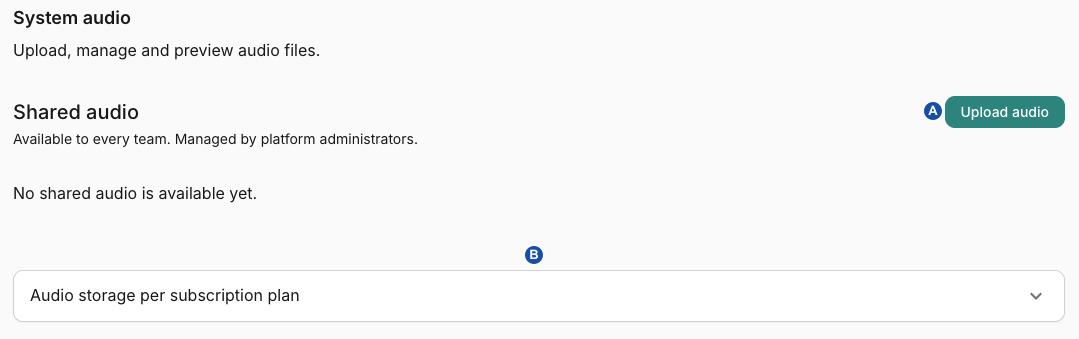
A uploads the shared file. Expand B to edit per-plan storage allowances.
Set storage allowances per plan
As platform administrator, expand Audio storage per subscription plan in Admin settings → System audio. Enter the allowance per team in MiB for each plan and select Save allowance. Leave the field blank for no limit; enter 0 to block new uploads. Lowering an allowance keeps existing files.
Resolve upload and preparation errors
| Message or state | What to do |
|---|---|
System audio storage is not configured | Ask your platform operator to configure storage. No library entry is created and no storage is reserved. |
The file exceeds the configured N MiB upload limit. | Shorten or compress the audio within the supported encodings, or ask the operator about the per-file limit. |
Use a mono or stereo PCM WAV … or This file is not a complete, readable WAV. | Export the audio again in a supported encoding and upload the new file. |
Audio must be five minutes or shorter. | Shorten the audio and upload it again. |
The preparation service is unavailable. Retry when it is restored. | After the operator restores the service, select Retry preparation on the row. |
The file did not pass a configured safety check. | Upload a different file. |
If a transfer fails while the dialog is still open, retry the same upload. If you closed the dialog, delete the unfinished row before uploading again.
Verify the library
- Upload a short test WAV to Your team's audio and wait for Ready.
- Select Preview and confirm you hear the expected audio.
- Check that the storage line increased, then delete the test file and confirm that usage drops after cleanup.
Related
- Deploy and verify system audio — to configure the storage backend your operator needs before uploads work.
- Choose App audio triggers — to choose when your uploaded files play and verify the published selection.
- Manage subscription and usage — to check which plan determines your team's audio allowance.
- Access and teams — to confirm that your account has the Team Admin role needed for uploads.