Provision users and manage team membership
Create the right product account, give it access to the intended team and verify that the person can use that access. A welcome email, a team membership and an active sign-in method are separate parts of this task. Most of this page concerns the Delphi product deployment. To give a person access to restricted documentation, use Add a documentation member.
Choose the correct user view
Availability: Team Admins manage the teams they administer. Super Admins manage platform identities as well as memberships; Super Viewers have permitted read access without these writes. The server rechecks authority, account state and relevant plan limits. A visible row is not proof that every row action is permitted.
| View or action | Scope |
|---|---|
| Settings → Users | Membership in the selected team: email/name, team Role and account Active indicator. The indicator describes the account, not a separate per-team activation switch. |
| Admin Settings → Users, viewed by a Super Admin | Platform identity, platform role and team assignments. Editing a Standard User opens the global account form. |
| Actor-scoped user management for a Team Admin | A person shared across several manageable teams may appear once per manageable membership. The row's team identifies which membership is being edited or removed. |
| Invite User to Team | Searches by email within the administrator's permitted user scope, then adds a visible existing person or creates a new account. It is not an unrestricted directory picker. |
Select the team before opening the team form. Check whether you intend to change one membership or the whole identity. Team Admin does not grant global suspension, profile editing or account deletion. See Access and teams for role meanings and missing-control diagnosis; use Change platform role for that separate operation.
Create a new user
A Team Admin starts the team's add action to open Invite User to Team. A Super Admin may instead use the platform Users create action. Choose the actual sign-in method; neither an email domain nor a team role safely determines it.
| Field | What to enter and what it changes |
|---|---|
| Intended product identity and notification recipient. Creation checks duplicates case-insensitively across the deployment. Existing-account forms disable this field. | |
| First Name / Last Name | Display identity. The team invitation form requires both before submission; do not substitute another person's details to bypass a conflict. |
| Default Team | Platform creation form: the initial selected team and initial membership. Team creation uses the team from which the dialog was opened. |
| Team role / Role | Explicitly choose Admin, Member or Viewer for that team. It does not set a privileged platform role. |
| Sign-in method — Delphi password | Creates a pending, inactive Standard User without an administrator-supplied password and queues a single-use password-setup email. |
| Sign-in method — Microsoft Entra SSO | Requires Microsoft Entra Object ID from the configured tenant. Creates an active Standard User with an explicit provider identity link and queues a sign-in invitation. It does not create the Microsoft account or set a local password. |
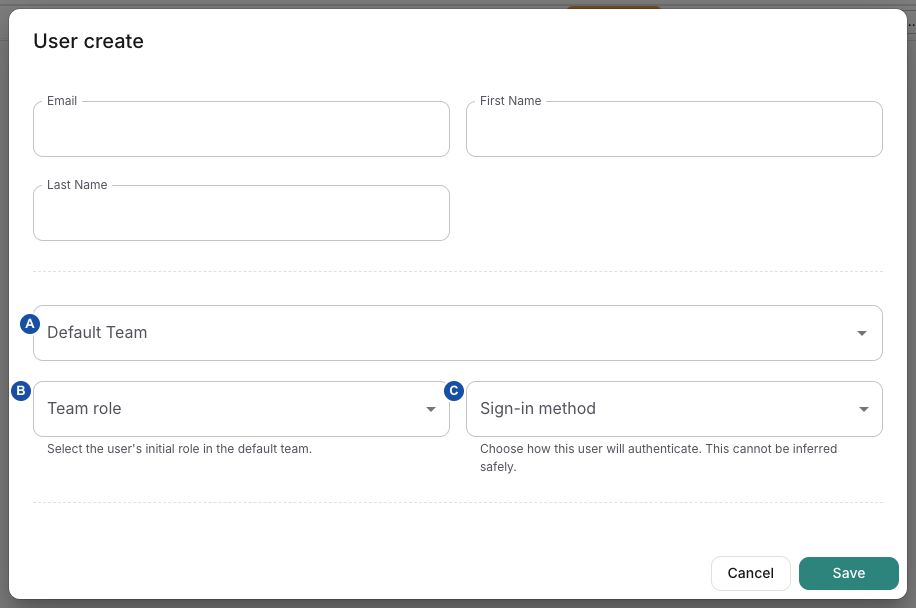
A — Default Team: choose the initial membership and selected team. B — Team role: choose authority within that team. C — Sign-in method: choose an enabled authentication method. These fields are separate from the platform-role change. The empty form shown has not created a user; select the image for full size.
Sign-in availability: Delphi password provisioning requires credential authentication enabled. Entra provisioning requires the Microsoft provider enabled and a valid tenant configuration; the entered Object ID is not an email address. The form lists enabled methods, but backend configuration checks can still reject an incomplete Entra setup. If neither method is enabled, ask the operator to configure authentication before provisioning. Use the existing Microsoft prerequisites rather than guessing an Object ID.
- Confirm the intended team, identity, role and enabled sign-in method.
- Complete the fields, then choose Invite User in the team dialog or Save in the platform form.
- Reopen the list and verify the account, initial membership and status. New creation always starts as platform Standard User; elevation is a separate, approved operation.
- Ask the recipient to complete the applicable setup/sign-in flow and select the intended team. A successful create response means the mail job was queued with the account transaction, not that the mailbox received it.
Creation checks the team member limit and, for Admin, the admin limit when subscription enforcement applies. The member count includes all team memberships; “Members” is not a promise that only the Member role consumes a slot. If a limit is reached, ask the billing/team administrator to review the actual plan using subscription and usage.
Complete or resend a password invitation
The recipient follows the newest welcome link, chooses a password satisfying the displayed rules, submits it and signs in after the success screen returns to login. Successful first setup activates the pending credential account and consumes the token. Do not manually activate a passwordless pending user as a substitute for setup.
Welcome links default to 24 hours, distinct from the shorter forgotten-password reset token. The operator's WELCOME_INVITATION_TOKEN_MINUTES accepts a valid value clamped between 15 minutes and seven days; invalid values fall back to 24 hours. The email includes its actual expiry timestamp.
For an eligible pending invitation, reopen the user and choose Resend Welcome Email. This replaces the previous token, so an older email no longer provides the current link. Resends within 60 seconds of the last token creation are rejected. A pending account's resend additionally requires a usable active default-team membership and an administrator permitted to manage that target/default team; merely sharing some other team is not enough for this operation.
The welcome action is for inactive, unlocked, unsuspended Standard Users without a password or linked provider account. It is not a method to reset an established user's password, recover a suspended account or add credentials to an Entra-only account. Use password/account recovery for those distinctions.
If the link is missing, expired or superseded, verify the recipient and resend through the supported action. If delivery still fails, the operator checks the queued email and transport through background jobs. Do not post setup tokens, invitation URLs or screenshots containing them in support tickets.
Add an existing person to another team
- Open Settings → Users for the target team and start Invite User to Team.
- Enter the existing person's email, complete the required name fields and select a team role and sign-in method. The current form requires the provisioning fields before it looks up the email; if it finds a visible existing account, it reuses that identity rather than changing its authentication method or profile. Selecting Entra also makes Object ID required by the form, even though an existing-account match is a membership path.
- Submit Invite User. If already a member, the form reports that condition instead of duplicating the membership.
- Verify the new team membership and role independently of the notification. The existing account's default team is not changed by the membership-add operation; the user may need to switch teams themselves.
Email lookup is restricted to the acting administrator's manageable users. An existing person outside that scope can be invisible to a Team Admin, while global duplicate checking still prevents creation. A generic provisioning conflict therefore does not mean the person needs a different email address. Ask a Super Admin to resolve the existing identity and assignment.
Adding the membership and sending the team notification are separate requests. Notification failure does not undo the membership; this form can close after logging that send failure. Check the team list before trying to invite again. The notification requires an active, unlocked recipient with an enabled usable authentication method; a pending credential user may need the original provisioning invitation instead. A notification tells an existing member how to sign in; it is not an acceptance token that must be clicked to create the membership.
Change a team role or remove membership
Use the selected team's row Edit action to open the membership dialog. Change Role, then choose Update User. Your own role is disabled in this form; ask another authorized administrator. Promoting to Admin can fail when the plan's admin limit is reached.
Assign and verify a replacement administrator before demoting or removing the only team administrator. The global account-assignment form and team removal path enforce remaining-admin checks, but these are not a universal guarantee for every membership API path. Do not rely on the UI's self-edit disablement as a description of all direct API permissions.
For removal, confirm the row's person and team, then use the team row's removal action and its confirmation. This removes that membership, not the global identity. The team-removal API rejects self-removal and requires another administrator to remain. When it removes the person's default team, it selects a remaining membership as the new default, or clears the default when none remains. Do not assume a particular remaining team will be chosen.
Removal can also reassign a matching team billing-contact email to a remaining administrator. Check the billing contact when removing the person who handled billing. Verify the affected user's refreshed access and other memberships; do not claim that removal instantly interrupts every already-running request.
Super Admin: edit account and multiple assignments
For a Standard User in Admin Settings → Users, the global edit form exposes name, Active, Default Team and Team Assignments & Roles. Email is disabled in this form. A privileged platform account needs its separate, approved role-change workflow before this generic editor accepts account changes; a disabled field is not a reason to bypass that workflow.
Teams and the per-team Role controls describe the intended assignment set. Removing a team from that set removes its membership when saved. Newly selected assignments are seeded with Member in the edit form; review each role rather than assuming Admin is inherited from another team. The default team must be an active assigned team. Choosing a default team alone does not add an unassigned membership.
The global update rechecks active teams, plan limits and remaining admins in its transaction. For this form the user record and membership changes commit together. This must not be generalized to the separate team dialog: a Super Admin changing profile fields and membership role there can issue distinct mutations, so reload and inspect both if one fails.
Active is deployment-wide account status, not membership status. Its consequences and safe recovery are defined in Suspend or re-enable product access. Changing selected/default team does not reset the password, alter the sign-in method or elevate platform authority.
Distinguish membership removal from account deletion
The global Users delete action is a Super Admin operation for an eligible Standard User; self-deletion is rejected. Privileged accounts first require the separate, approved platform-role transition. Use membership removal when only one team's access should end.
Global deletion is broader than removing a row. Deleting the last user of an active team can decommission that team, invalidate access, release its numbers and enqueue billing cancellation/customer-deletion work. For teams with other users, remaining-admin checks apply. A database transaction does not mean the queued external billing cleanup has already finished. Review every affected team and billing relationship before approving this action; use background-job diagnosis for follow-up outcomes and subscription lifecycle for billing context.
This guide does not provide a one-click undo for deleted identities or released numbers. If removal was not intended, stop further cleanup actions and ask the platform operator to assess the actual state and supported recovery.
Change a platform role
A platform role applies across this Delphi deployment. Standard User, Super Viewer and Super Admin are different from a person's Admin/Member/Viewer membership in one team. Use a team-role change when the task only requires different authority within that team; do not grant platform administration to solve an ordinary missing membership.
Availability: a current, usable Super Admin performs this operation for another account in Admin Settings → Users. Team Admin or Super Viewer access is insufficient, and you cannot change your own platform role. The operation requires a working role-verification email path. The target must have usable enabled authentication before gaining more platform privilege.
- Identify the correct deployment and target account by its login identity. Complete its normal provisioning first if necessary; this operation does not create an account or finish a pending invitation.
- In the target's row, open Change role and select Standard User, Super Viewer or Super Admin from the alternative roles offered. This is separate from the team Users role column and from the generic account edit form.
- Review the target's name and previous/new platform roles in Change platform role. Select Re-authenticate and change role to begin verification. Beginning the challenge does not change the target's role.
- Read the six-digit code sent to your own existing account email, shown masked in the dialog. It is the acting Super Admin's code, not the target user's approval. Keep the same signed-in browser session.
- Enter the 6-digit verification code and select Confirm role change before the five-minute expiry. The field accepts six digits; having six digits enables the control but does not establish that the code is correct.
- Confirm the new Platform role in the list. Ask the affected user to sign in afresh and verify the intended platform and team actions. A Super Viewer should gain platform-wide read access, not administrative write authority.
- Review the successful role-management audit with actor, target, previous/new role and time. Use security event export and retention to distinguish the audit record from evidence of external export. A separate notification to the affected user is queued after success; its arrival is not the authority for deciding whether the change committed.
The extra verification in this dialog is email-based for both password and Microsoft sessions. It does not ask for the administrator's password or redirect to Entra for a new challenge. Password/Entra checks below establish usable account authentication; they are not alternative confirmation controls. This is also not an approval by a second administrator or by the target user.
Controls and time limits
| Control or state | Effect and next step |
|---|---|
| Role selector | Offers destinations different from the current role; the server independently checks whether that transition is allowed |
| Begin button | A new challenge queues verification email; resuming a matching active challenge reuses it without sending another email. Use Resend for another email; beginning does not change the role |
| Code countdown | Five minutes from challenge creation; an expired code cannot confirm |
| Resend code | Available after 30 seconds; resends the same code with the same expiry, up to five sends total including the first |
| Incorrect code | Counts against the challenge; the fifth incorrect attempt exhausts it. The server also limits the actor after five invalid-code failures in a 15-minute window |
| Cancel or closing the dialog | Clears the local dialog without changing the role. It does not call a server cancellation endpoint; an outstanding challenge can still exist until expiry or consumption |
| Request in progress | Closing and relevant actions are disabled while mutations are pending |
Only one unexpired active challenge per actor is allowed. Reopening the same operation in the same session can resume it; closing the dialog and choosing another target/role does not erase that outstanding challenge. Let it expire or complete only the intended operation. Do not treat repeated clicking as a way to bypass the attempt limit.
Check target eligibility before a promotion
For an increase in privilege (Standard User → Super Viewer/Super Admin, or Super Viewer → Super Admin), the target must be active, unlocked and unsuspended. It also needs a usable authentication method under this deployment's current provider settings.
- A local password counts only while credential authentication is enabled.
- A Microsoft-only target needs one canonical Entra account link in the configured trusted tenant, with Microsoft authentication enabled. Email text or group membership cannot substitute for that link.
- Multiple Entra links or an untrusted Entra link block this readiness check, even if a local password also exists. Have the responsible administrator resolve the identity setup rather than repeatedly requesting codes.
- Reducing an existing privileged role remains possible for an inactive, locked or suspended target; the promotion readiness rule must not be mistaken for a ban on incident-response demotion.
The server checks the acting Super Admin's current usability/session, originating session and unchanged verification email. At confirmation it rechecks target eligibility and that the target's current role still matches the role when verification began. A valid code does not override changed account state or authority. Demotion also refuses to remove the final usable Super Admin; do not test this safeguard against the only working production administrator.
Understand the consequences before confirming
| Change | Consequence |
|---|---|
| Any successful platform-role transition | Updates the target's platform role, increments its session version and revokes outstanding password-reset tokens. Prior sessions fail subsequent security checks; this is not proof of immediate interruption of already-running requests |
| Existing team memberships | Retained: the transaction does not rewrite their membership roles or default team. After losing platform-wide access, the target relies on its existing memberships |
| Promotion to Super Admin with a local password and credentials enabled | Marks that password as needing replacement; next credential sign-in must complete the Super Admin-compliant password change, even if its former age was recent |
| Promotion to Super Admin with a stored password but credentials disabled | Removes the dormant local password; the eligible target continues with its explicitly linked trusted Microsoft account |
| Super Admin promotion of a passwordless Microsoft account | Does not invent a local password or require creating one just for the role change |
| Super Viewer promotion or a demotion | Does not apply the Super Admin promotion-specific password reset/removal branches |
Role change, challenge consumption, its success audit and notification enqueue happen in the same database transaction. Redis session-tracking cleanup is attempted afterward; if cleanup fails, the database session-version invalidation remains authoritative. Mail transport or mailbox delivery is separate from committing the role change.
Verify and recover without repeating an unintended change
| Symptom | Check and recovery owner |
|---|---|
| Change role missing | Confirm a current Super Admin actor and a different target account. Complete ordinary target provisioning if its eligibility is missing; Team Admin view does not become a platform-role editor |
| Challenge cannot start | Check actor/target status and authentication, existing active challenge and email-path readiness. Ask the operator to inspect the recorded denial rather than broadening roles |
| No verification email | Check the masked acting administrator address, not the target mailbox. Use resend only when available; operator checks Tasker and SMTP delivery. A queued job is not proof of delivery |
| Expired code or exhausted attempts | Close the dialog and begin again when expiry/rate limits permit, keeping the originating session throughout the new challenge |
| Session, mailbox or role changed during verification | Refresh the account state and sign in again if necessary. Do not reuse an old challenge for a different account, destination role or browser session |
| Error or disconnect after confirmation | Refresh the persisted role and inspect the audit outcome before retrying. A previous successful confirmation can be reported again without applying another transition |
| Target still sees the old view | Sign in afresh and verify the actual permitted operation. Distinguish retained team roles from the changed platform role |
Operator prerequisite: in production, the role-change service requires PLATFORM_ROLE_EMAIL_TASKER_READY=true (unset defaults to unavailable there). This flag is an explicit readiness declaration, not an automatic health test. The web/API role service and Tasker need the same configured PLATFORM_ROLE_EMAIL_CODE_SECRET; production requires at least 32 characters. Confirm the worker handles PLATFORM_ROLE_CHANGE_CODE_EMAIL and has working mail delivery before declaring readiness. A correct public NEXTAUTH_URL is needed for the post-change notification's sign-in link. Do not expose either the secret or verification codes in screenshots, logs or support messages.
For account suspension, password expiry/reset and sign-in-method diagnosis, use account access and recovery. For mail delivery ownership, use notifications. A different platform role is not a remedy for a broken delivery service.
For a role-change record, use Read the audit event sequence to distinguish a started attempt, a committed role change and a later session-cleanup failure.
Recover Super Admin access when nobody can administer
Use this exceptional operator procedure only when no designated Super Admin can use the ordinary role-change workflow. First distinguish a password/lockout problem, Microsoft identity recovery, an inactive account and absence of a usable platform administrator. A Team Admin role is not platform-wide authority. Do not generate repeated failed logins as a recovery test.
An authorized deployment operator needs access to the correct Ops host, its approved setup image and configuration and an incident/change reference. This grants platform-wide authority: confirm the intended person's identity and email ownership through the approved recovery process. It is not a way for a team administrator to promote themselves. See bootstrap and migration boundaries before running the setup container.
Reset an existing credential Super Admin
Availability: from 0.9.18. If the account is already a Super Admin, active and not suspended, but its existing local credential is unusable, use the standalone setup password-reset action. It does not elevate another account or create a password for a passwordless/invitation account. Confirm the deployment enables credential sign-in and that the selected setup image supports this action.
Use the approved Ops-host wrapper with a TTY. It prepares the deployment environment and runs the one-shot setup container; as with the elevation path below, verify the actual setup image, including any cached-image fallback:
cd /opt/services/ops
./delphi-setup.sh -- \
  --reset-password admin@example.com \
  --super-admin-recovery \
  --operator-id 'example-operator-id' \
  --change-reference 'example-change-reference'
Replace the example identity and reference with the approved target and change record. Enter the new password at the private terminal prompt; do not put it in shell arguments. Super Admin policy requires at least 16 characters and rejects recent password reuse. Operator identity and change reference are required, each at most 200 characters; they are audit assertions, not authenticated TelWeb sessions. This standalone action bypasses the normal setup-step runner, unlike the forced first-use step below.
A successful transaction replaces the password, clears an existing account lock and its failed-attempt rows, resets password age, revokes reset tokens and increments the session version. It preserves the account's role and team memberships. Verify PASSWORD_RESET_BY_SETUP_CLI with outcome: succeeded, the intended target and change reference in audit records. A denial uses the same action with outcome: denied; success is not proof of a later sign-in.
Have the designated administrator sign in afresh and verify the expected access. The setup container invalidates database session revisions but does not clear Redis session slots. If the configured session cap still blocks login, the operator must follow the approved Redis recovery runbook for that exact user's session key; do not clear other users' sessions or a whole database. Non-interactive use requires DELPHI_RESET_PASSWORD securely supplied to the setup container; a host environment variable alone is not proof that the container received it.
If the target is suspended, inactive, passwordless or not already a Super Admin, this exceptional reset is refused. Use the appropriate account/identity recovery or the separately scoped elevation procedure below; do not delete identity records to force this path to pass.
Establish the scope before running setup
The host wrapper /opt/services/ops/delphi-setup.sh, installed with the Ops service bundle, loads deployment configuration, fetches service environment, prepares TLS and runs the one-shot setup image. It normally attempts an image pull and can fall back to a cached image if pulling fails. Verify which image will actually run; do not infer source/version from a failed pull. The wrapper is not a read-only diagnostic.
--force-step firstUse.superuser is not an “only this step” selector. It forces that keyed step while the runner still considers other missing or version-bumped steps in the selected setup phases. Normal phases include baseline and first-use. Decline any testing/example seed prompt during production recovery; enabling it adds development-only work. The displayed plan is followed by execution without a separate global confirmation prompt. Resolve other pending setup work and review the intended registry/image before invoking it; do not use this command as a harmless plan preview.
After that preparation, the interactive Ops-host command is:
cd /opt/services/ops
./delphi-setup.sh --force-step firstUse.superuser
Use a terminal with a TTY for interactive prompts. Supply Admin first name, Admin last name, Admin email, a temporary password meeting the Super Admin policy, Operator identity (corporate ID/email) and Approved change/incident reference. Names can update an existing elevated account. Keep the password out of command arguments, logs and tickets; the operator identity you enter is an audit assertion, not proof of authenticated TelWeb authority.
Understand which recovery can succeed
| Target state | Result of the superuser step |
|---|---|
Already SUPERUSER | Left unchanged, even when that account cannot sign in. This is not a password reset or unlock operation. Use the existing Super Admin reset, ordinary account recovery or identity-provider recovery path as appropriate. |
| Existing eligible account with a local password, credential login enabled | Elevates the account and replaces its password with the temporary credential you enter; first credential sign-in requires a password change. |
| Existing eligible account with a stored password, credential login disabled | Removes the dormant password; a trusted enabled Microsoft identity must support access. It does not enable credential login. |
| Existing eligible passwordless Microsoft account | Preserves its trusted identity link without creating a local password. The step still validates the password prompt even though this branch does not store it. |
| No matching account | Creates a credential Super Admin only when credential authentication is enabled. First sign-in must replace the temporary password. |
| Inactive, locked or suspended target; ambiguous email matches; multiple/untrusted Entra bindings; no enabled authentication method | Refuses elevation. The force flag does not bypass these checks. Resolve the underlying identity/access problem; do not delete identity bindings merely to make recovery pass. |
When this step elevates an existing account, team memberships are retained. The transaction increments its session version, revokes outstanding password-reset tokens and retains a displaced password in password history. Account mutation, success audit and notification enqueue commit together; mailbox delivery and subsequent runtime/session checks are separate.
Non-interactive setup exists, but is not a permission or scope bypass. Its prompt adapter reads DELPHI_SETUP_FIRST_NAME, DELPHI_SETUP_LAST_NAME, DELPHI_SETUP_EMAIL, DELPHI_SETUP_PASSWORD, DELPHI_SETUP_OPERATOR_ID and DELPHI_SETUP_CHANGE_REFERENCE. An automation owner must verify these reach the setup container, not just the host shell, and that the full pending-step set is intended. Do not place temporary passwords directly in a copied shell command or assume the host wrapper forwards arbitrary environment variables.
Verify, then retire temporary recovery access
- Check the recorded target and
SUPER_ADMIN_RECOVERY_ELEVATEDevent in Access Logs. Correlate the operator identity, change reference, target and elevation path. A rejected attempt can emitSUPER_ADMIN_RECOVERY_DENIED; absence of a success row is not proof that all setup phases were untouched. - Deliver any temporary credential through the approved private channel. The queued role email does not contain that password and queueing does not prove receipt. Have the person sign in, complete the required password change and verify platform-admin access and the intended existing teams.
- Confirm stable designated administration is available. From another usable Super Admin account, use the challenged role workflow to demote a temporary recovery account, then deactivate/delete it only when appropriate. Self-demotion and loss of the final usable Super Admin are guarded; do not treat them as an incident-recovery plan by themselves.
- Record when recovery authority existed, the actual image/steps applied and verification results. A recovery failure or mixed setup result needs operator reconciliation before another forced run.
Add a documentation member
Availability: from 0.9.18, adding a member in the Portal sends the setup email and starts access automatically after setup. You need a Portal documentation operator account. The person receives the documentation modules licensed to the customer; you cannot grant modules per person.
- In the Portal, open Customers, select the customer and open the Members tab.
- Select Add member. In the dialog Add member to customer name, enter First name, Last name and Email, then select Add member.
- Read the notice:
<name> now has access.The person already has a central documentation account and can sign in at once.Invitation sent to <name>. The setup link is valid for 24 hours.The setup email was sent.Invitation created for <name>.The invitation exists, but no email was sent because setup email is not enabled for this Portal.- An error notice means the email could not be sent. The invitation stays open on the Invitations tab so that you can retry the send.
- The person opens the setup link, verifies the email address and finishes account setup. Access starts automatically; no second approval is needed. The Portal checks open invitations every 30 seconds.
- Use the Invitations tab when setup stalls. Check setup now checks the invitation at once. Send setup email, Send setup email again or Retry setup email sends the link again. Cancel invitation withdraws it.
- Verify that the person appears on the Members tab and can open a restricted page from the documentation entry URL.
Verify the result and resolve errors
| Observation | Check and next owner |
|---|---|
| Created, but recipient cannot log in | Pending password setup versus Entra identity link, active/locked/suspended state and enabled sign-in provider; recipient follows access recovery, operator checks configuration. |
| Generic provisioning conflict | Duplicate or out-of-scope existing identity; Super Admin resolves the account instead of creating a second one. |
| Membership exists, invitation absent | Treat membership and notification as separate results; operator checks the specific queued/failed send. |
| Welcome resend unavailable | Confirm pending credential eligibility, default active team and administrator scope; use reset only for eligible established credentials. |
| Role or team assignment rejected | Check current actor authority, active team, plan limits, default-team membership and remaining administrator. |
| Some changes appeared despite an error | Reload account and membership separately before retrying; the team dialog can use separate mutations. |
Finish by having the affected person sign in with their own method, choose the intended team and verify one representative permitted action and an expected restriction. Administrator visibility, an audit entry or a queued invitation alone does not prove that the person has usable access.
Related
- Configure and maintain a team — to create the team itself, manage its server groups or decommission it.
- Access and teams — to help a person who is locked out or needs a password reset.
- Access and teams — to explain to a reader how documentation access differs from product access.
- Security event export — to find the audit events for role changes and Super Admin recovery.