Read and configure the dashboard
Use the reporting-period toolbar at the top of Dashboard to select the dates for your team's dashboard. Sign in, choose the intended team, and open Dashboard before following these steps.
Availability: Every member of the selected team can read the dashboard. Changing the layout requires the team's Admin authority or a platform administrator.
Understand the dashboard's scope
Start by choosing the intended team and reporting period. The dashboard layout belongs to the team's assigned dashboard record, not to a private per-user workspace. A shared dashboard assignment can affect more than one team when its layout is saved.
Most metrics use the selected team and omit applications marked Exclude from dashboard. Application comparisons group by application even when a widget type uses the older word “flow.” A layout or widget name does not change which data the report counts.
Some reports have additional access requirements: LLM Tokens for an application and Caller Satisfaction require Team Admin access (or platform-wide access); LLM Tokens By Team requires platform-wide read access and compares across teams, not just the selected team. A visible widget is not proof its report is authorized. Platform Superviewers remain unable to save layouts even if edit controls appear. The layout-update API checks membership of an assigned team rather than requiring Team Admin; coordinate layout changes with that team instead of assuming an individual-only preference. Use Access and teams for role changes.
Choose a preset
Select Today, This Week, This Month, or All Time. The selected button is highlighted.
| Control | Reporting period |
|---|---|
| Today | From midnight UTC today to the time the range is selected. |
| This Week | The preceding seven days. Despite the label, this is a rolling interval, not the calendar week. |
| This Month | From the first day of the current month at midnight UTC to the time the range is selected. |
| All Time | The available stored history, without a recent-period restriction. |
Choose specific dates
- Select Custom to reveal the date fields.
- In From, choose the first day to include.
- In To, choose the last day to include. Use the same day or a later day; future dates are unavailable in the picker.

The numbers match the steps above. The date fields are empty because no custom range has been chosen yet. Open the image for full size.
The range applies once both dates form a valid interval; there is no separate Apply button. Selecting Custom alone only opens the fields. Custom dates include the selected days from start to end in your browser's time zone. This differs from the UTC boundaries used by Today and This Month.
Check or reset the selection
For a preset, the page address contains preset=day, preset=week, preset=month, or preset=total. After a custom range is applied, it contains from and to timestamps. Reloading restores the selected preset and recalculates its period. A custom address restores the saved timestamps.
If a custom selection has not applied, check that both fields contain valid dates and From is no later than To. To return to a preset, select its button.
Changing the period does not add widgets or create call data. If the dashboard is empty, check that you selected the right team and that its dashboard has widgets configured. Use Add and arrange widgets to check the shared layout.
Investigate what the dashboard shows
- To inspect individual calls behind a total, open conversation review and check its filters separately.
- If a call you review points to a routing or termination failure, use SIP diagnosis to distinguish flow behavior from trunk and transport problems.
Add and arrange widgets
- Choose Edit Dashboard. Click a widget in the palette to add it and open Widget edit, or drag it onto the grid to position it.
- In the widget editor, check Name, Widget Type and any App or Average Option controls, then choose Save. The name identifies the layout item; the rendered metric can still display its standard metric title.
- Move or resize widgets in edit mode; use a widget's pencil to change its configuration and its delete icon to remove that layout item. Removing a widget does not delete conversations or usage data.
- Use the dashboard's save icon for outstanding layout changes. Reload and verify the intended arrangement and metric filters. Leaving edit mode alone is not proof that a backend save succeeded.
Save boundary: the widget dialog's Save immediately submits the updated dashboard layout while leaving edit mode open. The dashboard cancel icon reloads the last saved layout; it cannot undo an already completed widget save or restore a successfully deleted layout item. Canceling a newly opened widget dialog does not necessarily remove the item that was just added to the local grid. Check the layout before saving or leaving it.
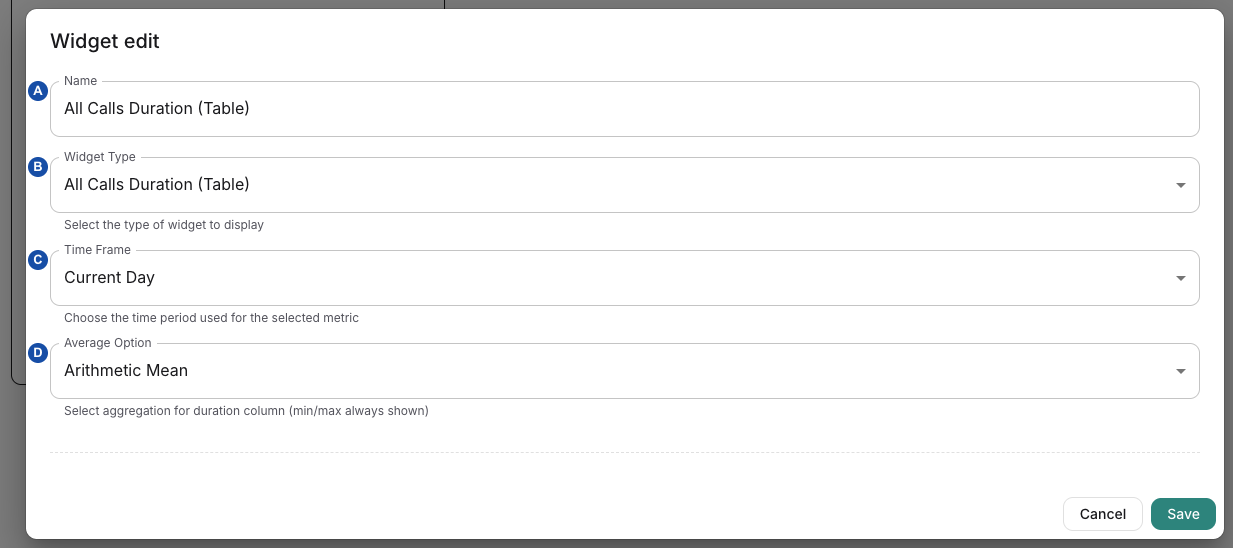
A names the widget; B selects its metric; C is the editor time frame (the dashboard toolbar controls the report); D chooses the duration average. These letters are references, not a sequence. Open the image for full size.
| Editor control | What it changes |
|---|---|
| Name | Layout label; use a name meaningful to other readers of the shared dashboard. |
| Widget Type | Chooses the metric/rendering from the available palette. Switching type changes which configuration fields are kept. |
| Time Frame | Present in the editor, but the dashboard's global period toolbar supplies the report range for these widgets. Use the toolbar to change the visible interval; do not rely on the editor's older “Current Week (Mo–Su)” label. |
| App | Available for app-specific call/unique-caller tables, satisfaction, duration and error widgets. Single-app charts need a specific app; All Apps is not a usable single-app selection. The editor initially fetches only 20 apps, so an absent app is not proof it does not exist. |
| Average Option | Duration table/chart only: Arithmetic Mean adds durations and divides by count; Median uses the middle value (or mean of the two middle values); Mode uses the most frequent exact duration. The initial choice is mean. Min/max columns remain min/max. |
Where a widget itself has an app or average selector, changing it filters that instance's displayed result. Those in-view selectors are local state, not a saved layout change; use the widget editor for its initial configuration. The shared period remains global.
Read the available metrics
| Metric/widget family | What it represents and how to interpret it |
|---|---|
| Total Calls | Number of stored conversations in scope, filtered by conversation start time. It is not a count of successful answers, distinct people or SIP requests. |
| Unique Callers | Distinct stored caller-number values, excluding null/empty values. It does not identify people across changed, withheld or differently formatted numbers. |
| Total Calls for (table) / Total Calls Across Apps (graph) | Conversation counts grouped by app; the table can select one app or All Apps. The graph compares apps rather than plotting a time series. |
| Unique Callers for (table) / Unique Callers Across Apps (graph) | Unique caller values counted separately within each app. Summing app rows can count a caller more than once across apps. |
| Call Durations (table) | Positive durations calculated from stored end minus start times for completed conversations. Min, max and chosen average are seconds; total is minutes. Missing/invalid durations are omitted. The Total row sums displayed total minutes; it does not calculate a pooled min/max/average. |
| Duration for (single-app graph) | The selected mean/median/mode duration per time bucket for one app. It is not a percentile or an average of every attempted call regardless of completion. |
| Total LLM Tokens | Sum of totalTokens in usage events for included apps, filtered by usage-event creation time. Missing usage is not proof of no model activity. |
| LLM Tokens for (app table) | Usage-event token totals plus conversation counts. Tokens use event creation time; conversation counts use conversation start time, so their periods do not always align one-to-one. Apps without matching usage rows can be absent. |
| LLM Tokens By Team | Platform-wide grouped stored Conversation.totalTokens and conversation counts by start time. This differs from the usage-event source of the other token widgets, so totals need not match. |
| Total TTS Characters | Sum of usage-event ttsCharacters by event creation time for included apps. It is not measured audio duration or a provider invoice. |
| Total Errors | Count of type: error entries in recorded conversation action logs, not every server log/error status and not the number of failed calls. A call can contribute several errors. |
| Errors for (single-app graph) | Recorded error events grouped over time, with message-based series. Messages are shortened to 120 characters and the report retains up to five leading types per bucket plus an Other count; do not treat a legend as a complete error catalogue. |
| Caller Satisfaction for | App-level average of completed QA caller-satisfaction scores, Scored Calls sample count and Hard Failures count. Details below. |
Error reports scan at most the newest 50,000 conversations in the selected scope. A wide interval may therefore show a partial total without representing all older calls. Narrow the range and use conversation review and logs for the individual failure evidence.
The single-app duration/error charts use server-local hour labels for a day-sized bucket and UTC date labels for week/month-sized buckets. Custom intervals use hour buckets up to one day and day buckets above that; All Time uses one total duration bucket but month buckets for errors. Keep the selected timestamps and time zones when comparing a graph to a conversation or external report. The preset and custom-day boundaries remain as explained above.
Queries can retain cached results; a one-minute freshness setting is not a promise of automatic one-minute polling. Selecting a preset establishes a range ending at that selection time; it is not a continuously sliding live window. Reselect the period/reload when checking later activity. An empty or zero-looking widget can also follow missing report data or a rejected request; check scope and permissions before treating it as a verified zero.
Investigate caller satisfaction
Caller Satisfaction is a generated assessment from scored conversations, not a collected survey. Select the intended app and period, inspect Scored Calls, and open the corresponding conversation separately to compare the judgment with its transcript and outcome. The dashboard does not automatically transfer its date filters to Conversations or guarantee a row-click drill-down.
The average uses completed records with a stored satisfaction score and excludes records marked as hard failures. Scored Calls counts that average's sample, while Hard Failures is a separate count. An app with only hard failures and no qualifying average sample is omitted by this report; a missing row is not evidence that it had no hard failures. Report the sample and exclusions with the average rather than calling a high value overall success.
Use Review a QA result for the individual score and reasoning. For missing scoring, ask the administrator to check team QA defaults and availability; changing a widget does not enable scoring or backfill old calls.
Related
- Review a conversation and its result — to inspect a call that a dashboard figure counts
- Configure and maintain a team — to check QA scoring defaults behind satisfaction figures
- Make and troubleshoot an HTTP API request — to read TTS usage totals from a backend